Connecting WordPress
Connect your WordPress site to import content and generate Astro pages.
Connecting WordPress
PhantomWP connects to your WordPress site via the REST API to import content and generate Astro pages. You continue using WordPress for content management while serving a fast static site.
Opening the WordPress Modal
Click the WordPress icon in the IDE header bar to open the WordPress settings modal.

Content Tab
The Content tab is where you connect to WordPress and configure what to import.
Connecting Your Site
- Enter your WordPress site URL (e.g.,
https://yoursite.com) - Click Fetch to test the connection
- PhantomWP detects the REST API endpoint automatically
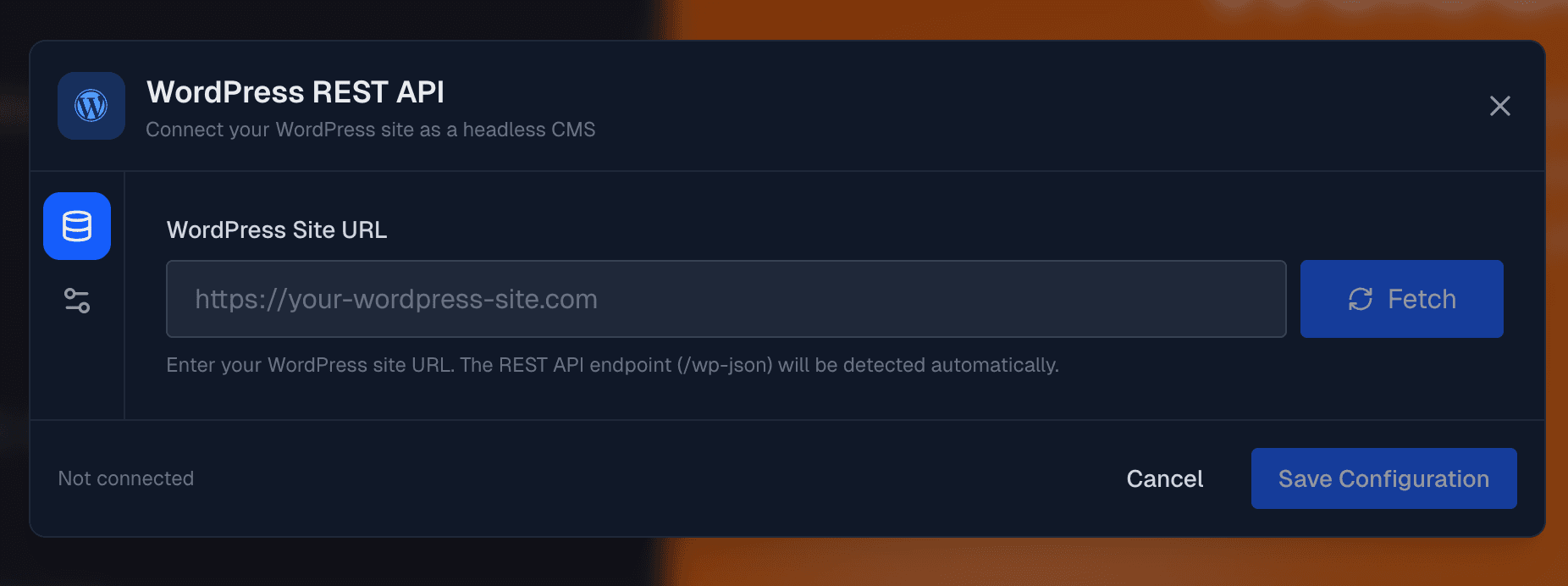
The REST API endpoint (/wp-json) is detected automatically. Just enter your site's base URL.
Site Info
After connecting, you'll see your site's information:
- Site name
- Site description
- Link to visit the WordPress site
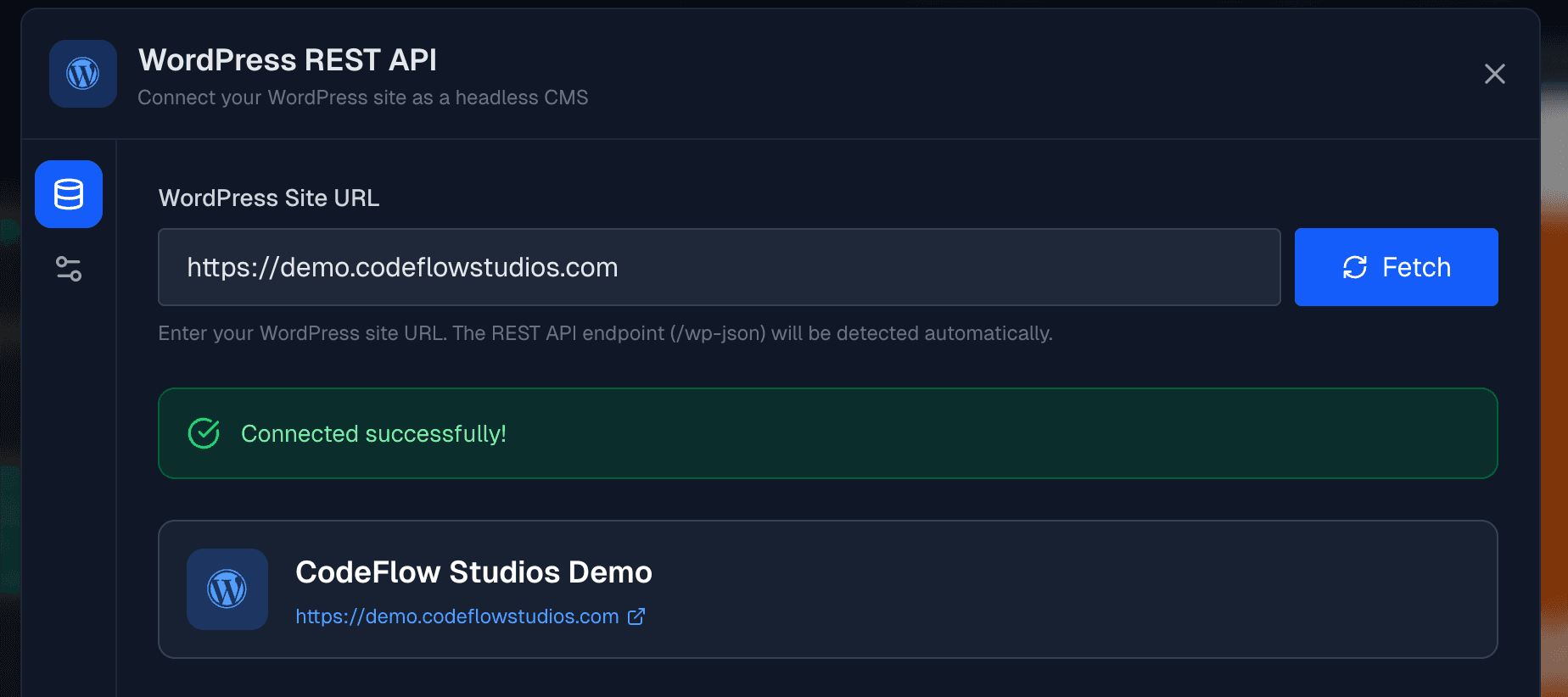
Content Types
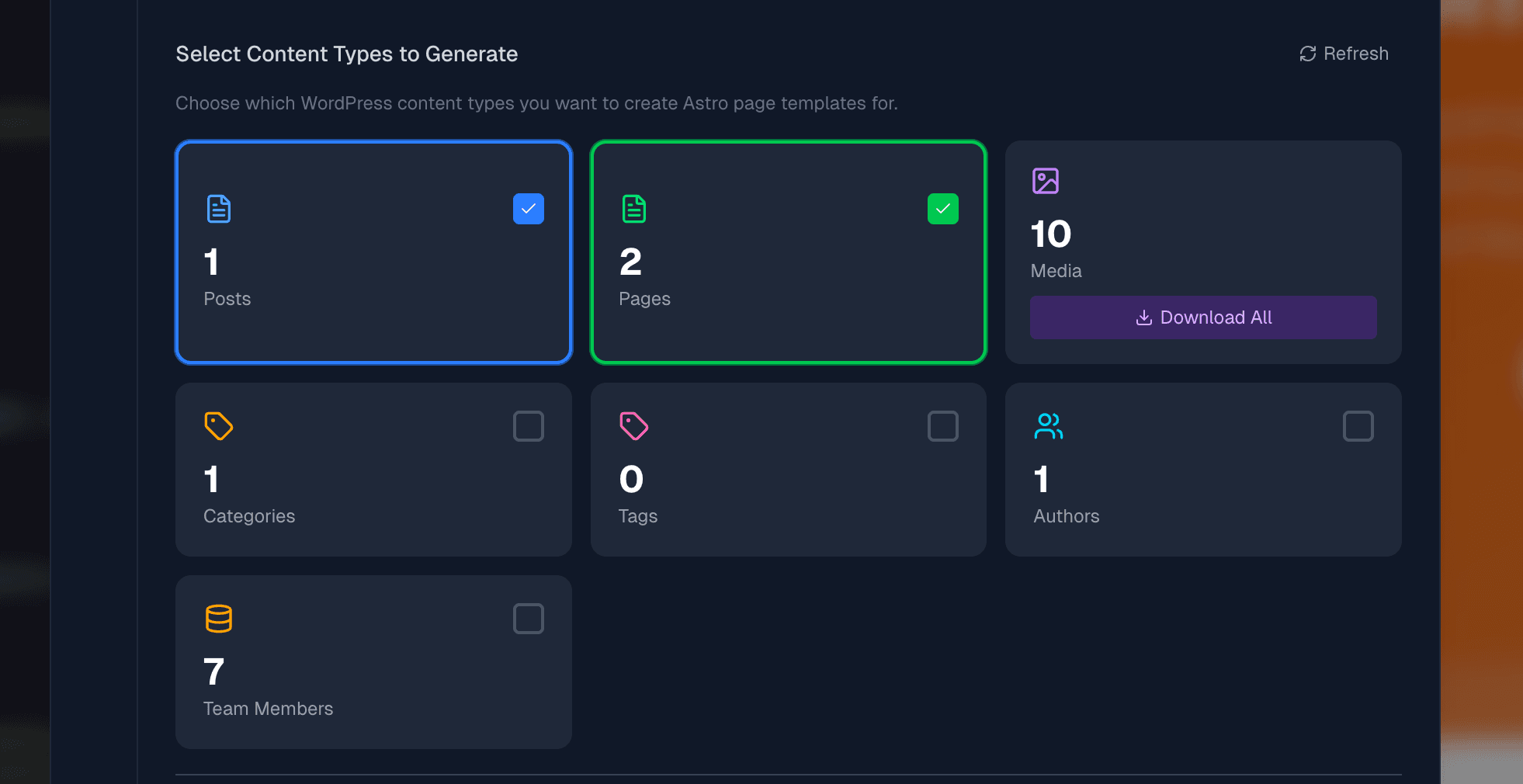
Once connected, PhantomWP shows a grid of all available content with counts:
| Content Type | Description |
|---|---|
| Posts | Blog posts with categories, tags, and authors |
| Pages | WordPress pages |
| Media | Images and files (display only, see Media Download) |
| Categories | Post categories |
| Tags | Post tags |
| Authors | User profiles |
| Custom Post Types | Any custom post types registered in WordPress |
Click a content type to select/deselect it. Selected types will have Astro pages generated for them.
Search Index
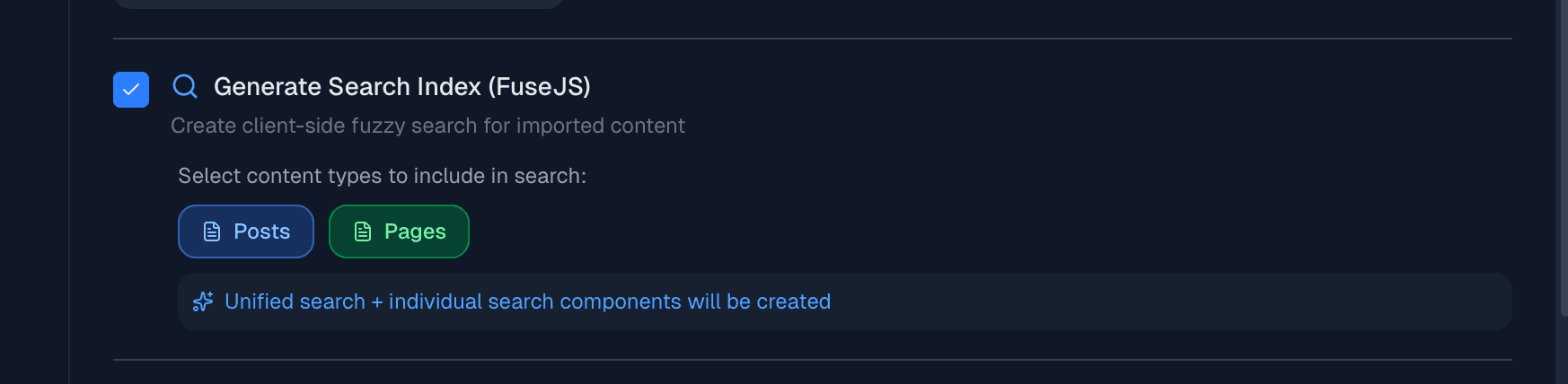
Enable the Search Index option to generate FuseJS search indexes for client-side search:
- Toggle Search Index on
- Select which content types to include (Posts, Pages)
- Search components are generated when you click Generate Pages
Media Download
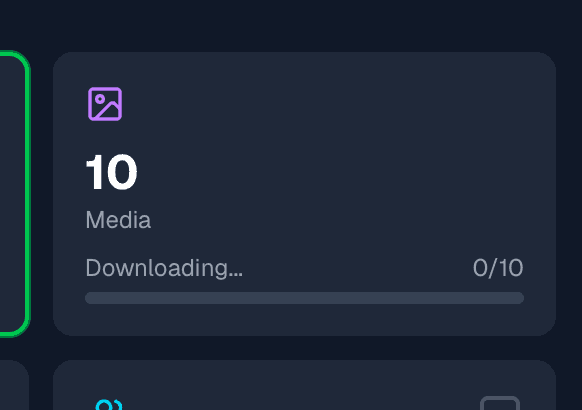
Download WordPress media files to your Astro project for better performance:
- Click Download Media
- Images are saved to
src/media/cms/ - Astro automatically optimizes these images at build time
Benefits of downloading media:
- Faster page loads (served from your domain)
- Astro image optimization (WebP, responsive sizes)
- No dependency on WordPress being online
Generate Pages
After selecting your content types, click Generate Pages to create the Astro templates.

This creates:
| Selected Type | Generated Files |
|---|---|
| Posts | src/pages/blog/[slug].astro, src/pages/blog/index.astro |
| Pages | src/pages/[slug].astro |
| Categories | src/pages/category/[slug].astro, src/pages/category/index.astro |
| Tags | src/pages/tag/[slug].astro, src/pages/tag/index.astro |
| Authors | src/pages/author/[slug].astro, src/pages/author/index.astro |
| Custom Post Types | src/pages/{type}/[slug].astro, src/pages/{type}/index.astro |
It also creates supporting files:
src/lib/wordpress.ts- WordPress API clientsrc/components/FeaturedImage.astro- Featured image componentastro.config.mjs- Updated with WordPress image domains
If files already exist, you'll be asked to confirm before overwriting.
Advanced Tab
The Advanced tab contains security and automation settings.
Take WordPress Offline (Optional)
If you want to completely hide your WordPress site from the public, PhantomWP can help you set up access restrictions:
- Expand the Take WordPress Offline section
- Copy your Secret Key (auto-generated)
- Configure your server to only allow requests with this key
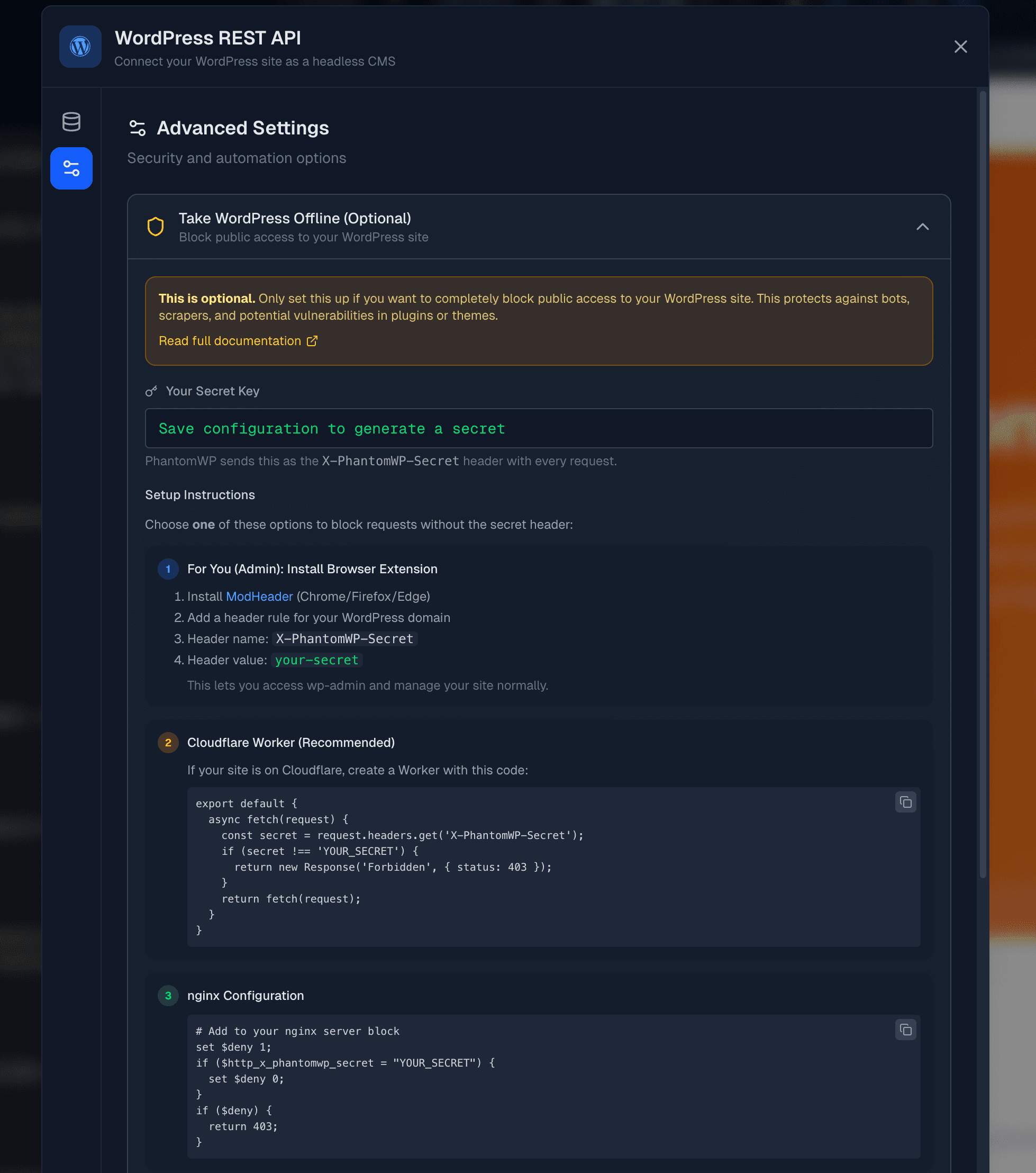
PhantomWP sends the secret as the X-PhantomWP-Secret header with every request. Server configuration examples are provided for:
- Cloudflare Worker
- Nginx
- Apache
See WordPress Security for detailed setup instructions.
Webhooks
Set up automatic rebuilds when WordPress content changes:
- Expand the Webhooks section
- Click Generate Webhook Secret
- Copy the webhook URL
- Add it to your WordPress site (using a webhook plugin)
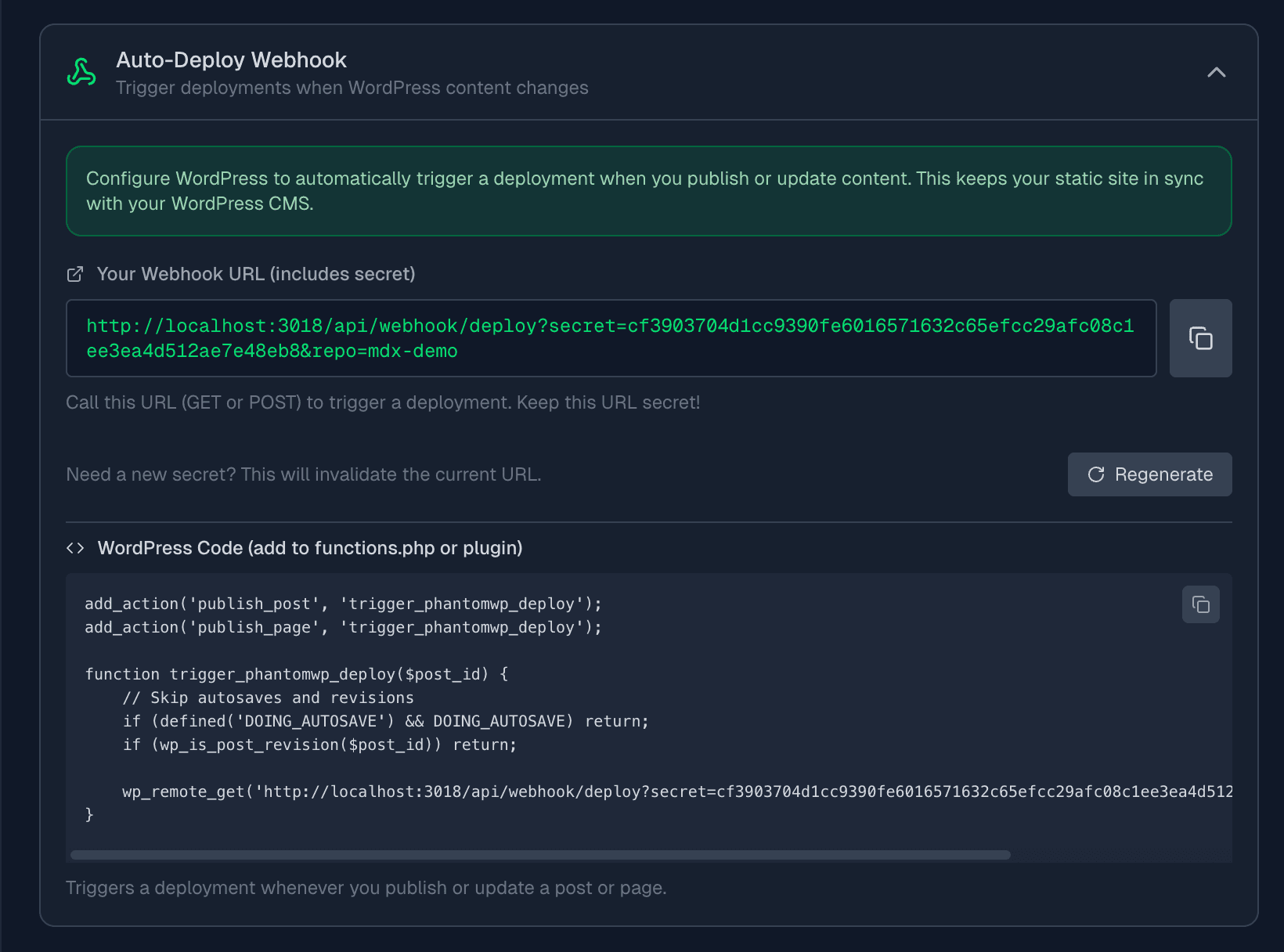
When you publish or update content in WordPress, it triggers a rebuild of your Astro site.
What Gets Saved
When you save your WordPress configuration:
- Database - URL and settings persist across devices
- Environment file -
.envis created in your Codespace with:WP_API_URL- WordPress API endpointWP_ACCESS_SECRET- Secret key for secure access
- Dev server restarts - Changes take effect immediately
Prerequisites
Your WordPress site needs:
- WordPress 4.7+ (REST API enabled by default)
- Published content (drafts aren't accessible via API)
- Public REST API access (or configured authentication)
Troubleshooting
Connection Failed
Check that:
- Your WordPress site is online
- The URL is correct (include
https://) - REST API isn't blocked by a security plugin
Test manually: visit https://yoursite.com/wp-json/wp/v2/posts
No Content Found
Make sure:
- You have published posts/pages (not drafts)
- Content isn't password-protected
- Posts are visible to the REST API
REST API Blocked
Some security plugins disable the REST API:
- Check plugin settings (Wordfence, iThemes Security, etc.)
- Whitelist PhantomWP's access
- Or use the Advanced tab's security method instead
Next Steps
- Browsing Data - Explore and insert WordPress content
- Importing Content - Import posts and pages
- WordPress Security - Secure your WordPress installation