Component Library
Browse and insert pre-built sections and page templates.
Component Library
The Component Library provides pre-built sections you can insert into your pages. Browse by category, preview with different themes, and insert multiple sections at once.
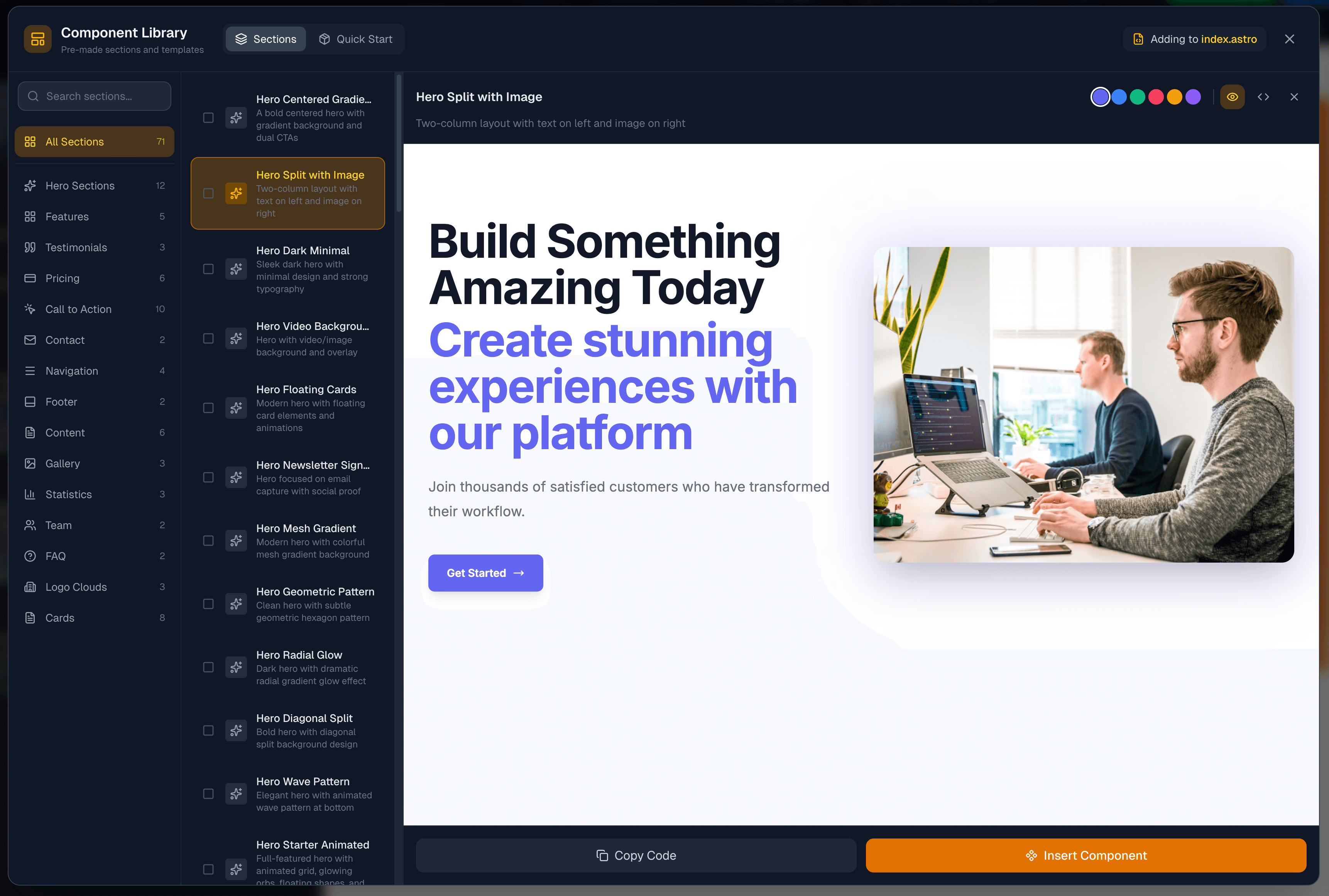
Opening the Component Library
Click the Sections icon in the toolbar (grid icon). The library opens as a modal.
Layout Overview
The library has two main tabs:
| Tab | Purpose |
|---|---|
| Sections | Browse individual sections by category |
| Quick Start | Pre-made bundles for common page types |
Browsing Sections
In the Sections tab, you'll see:
- Left sidebar - Category filter and search
- Middle - List of sections with checkboxes
- Right - Live preview panel
Categories
Sections are organized by type:
- Hero - Page headers and introductions
- Features - Feature grids and lists
- Testimonials - Customer quotes and reviews
- Pricing - Pricing tables and comparisons
- CTA - Call-to-action sections
- Contact - Contact forms and info
- Navigation - Headers and menus
- Footer - Page footers
- Content - General content sections
- Gallery - Image galleries
- Stats - Statistics and numbers
- Team - Team member displays
- FAQ - Frequently asked questions
- Logos - Logo clouds and partner sections
Click a category to filter, or use "All Sections" to see everything.
Search
Use the search box to find sections by name, description, or tags.
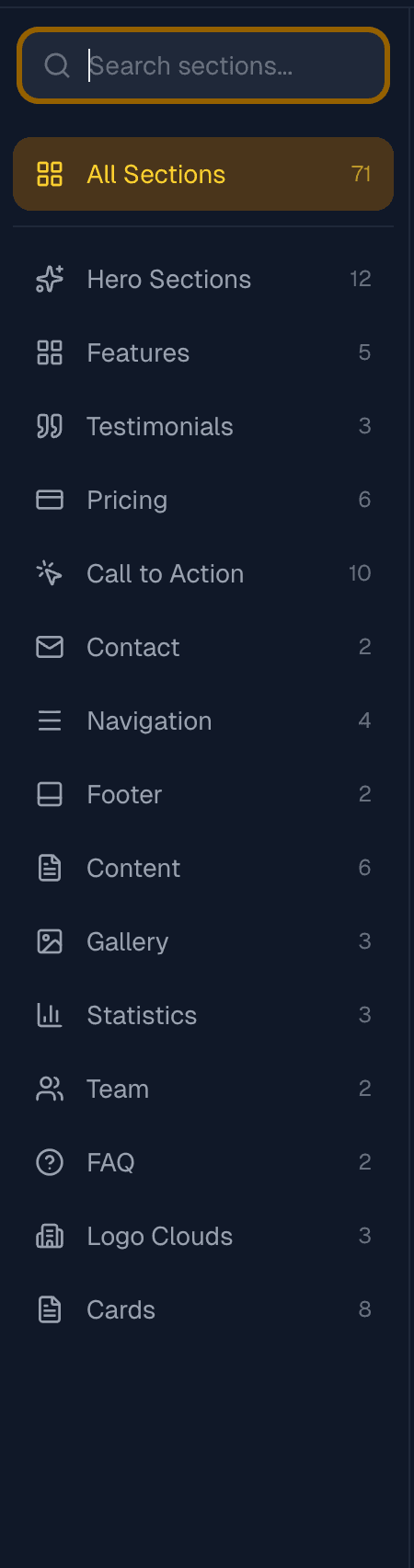
Previewing Sections
Click any section to see it in the preview panel.
Preview Features
- Live preview - See the actual rendered section
- Theme colors - Click color dots to preview different color schemes
- Code view - Toggle to see the Astro code
- Copy code - Copy the code to clipboard

Theme Preview
Six theme colors are available to preview how sections look with different brand colors:
- Indigo, Blue, Emerald, Rose, Amber, Violet
This helps you visualize how sections will look with your site's color scheme.
Inserting Sections
Single Section
- Click a section to preview it
- Click Insert Component
- The section is added to your current file
The header shows which file you're adding to (e.g., "Adding to index.astro").
Multiple Sections
Select multiple sections to insert them all at once:
- Click the checkbox next to each section you want
- A floating bar appears showing your selection count
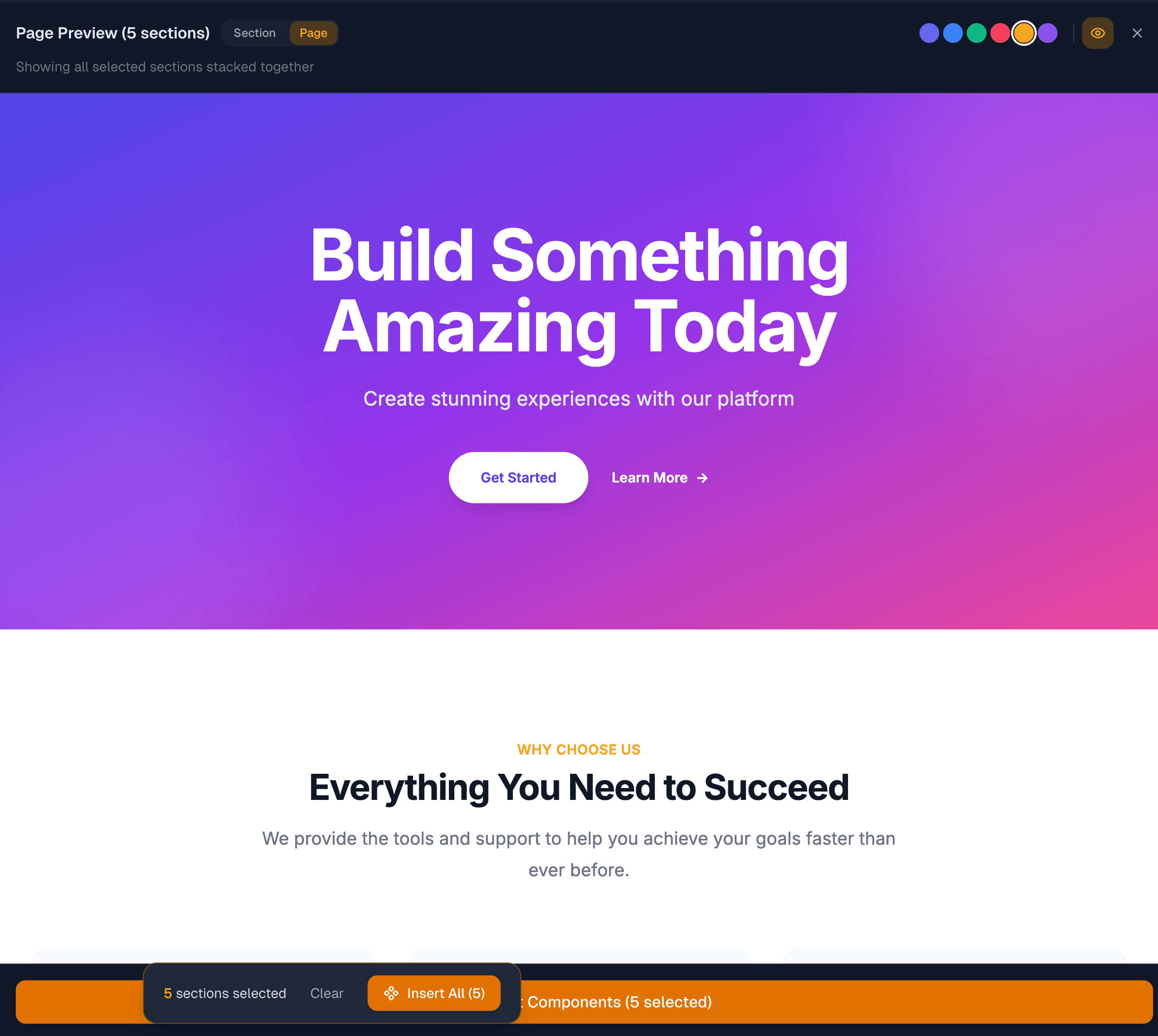
- Toggle Page view to see all sections stacked together
- Click Insert All to add them all
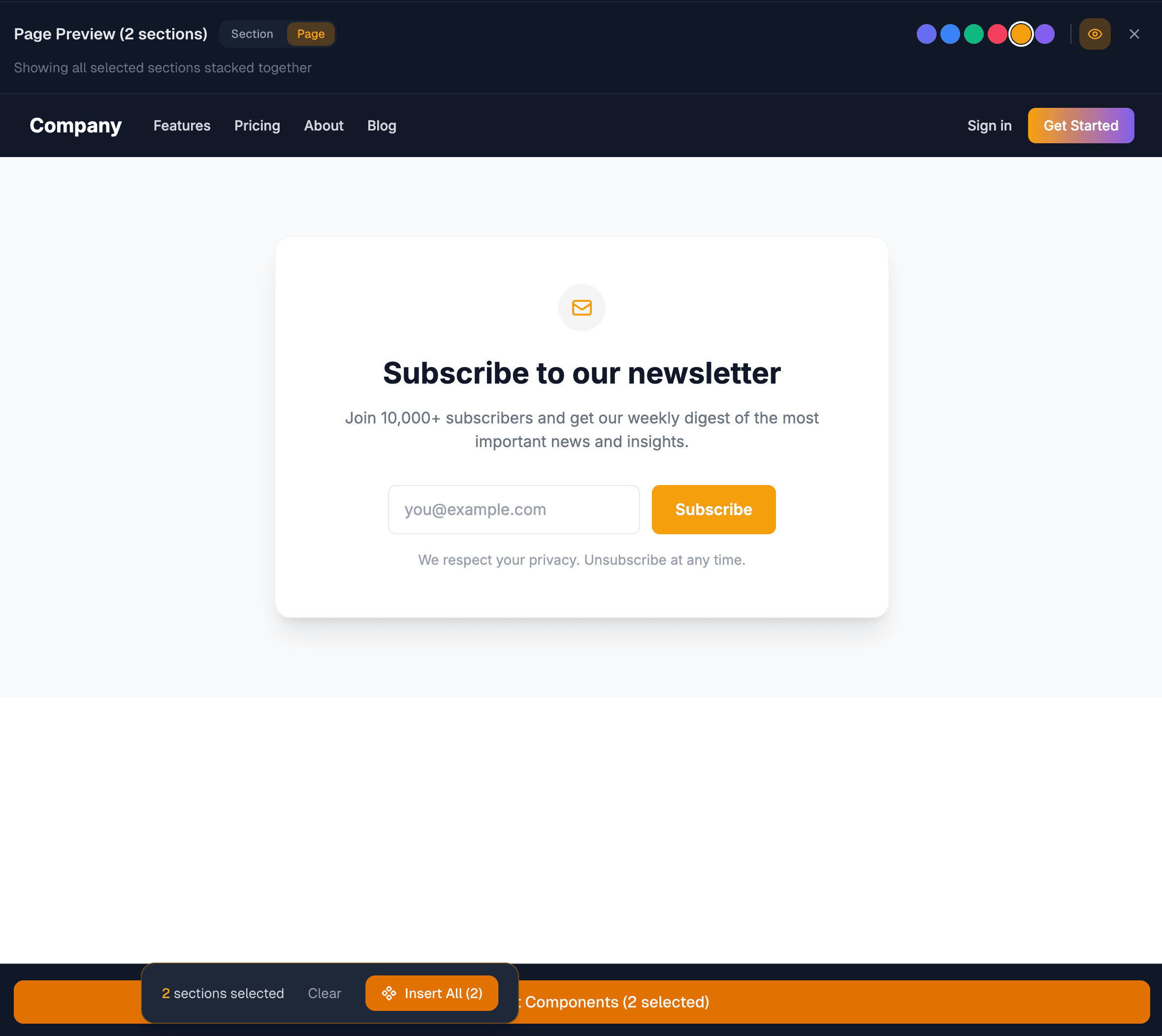
When inserting multiple sections, they're added in the order you selected them.
Quick Start Templates
The Quick Start tab offers pre-made section bundles for common page types:
| Template | Sections | Description |
|---|---|---|
| Landing Page | 5 | Hero, features, testimonials, CTA, footer |
| SaaS Landing | 10 | Full page for software products |
| Portfolio | 5 | Showcase work and projects |
| About Page | 5 | Team, stats, and testimonials |
| Pricing Page | 5 | Plans, features, and FAQ |
| Freelancer | 7 | Simple site for professionals |
| Product Landing | 7 | Sell your product with style |
| Agency Website | 8 | Professional site for agencies |
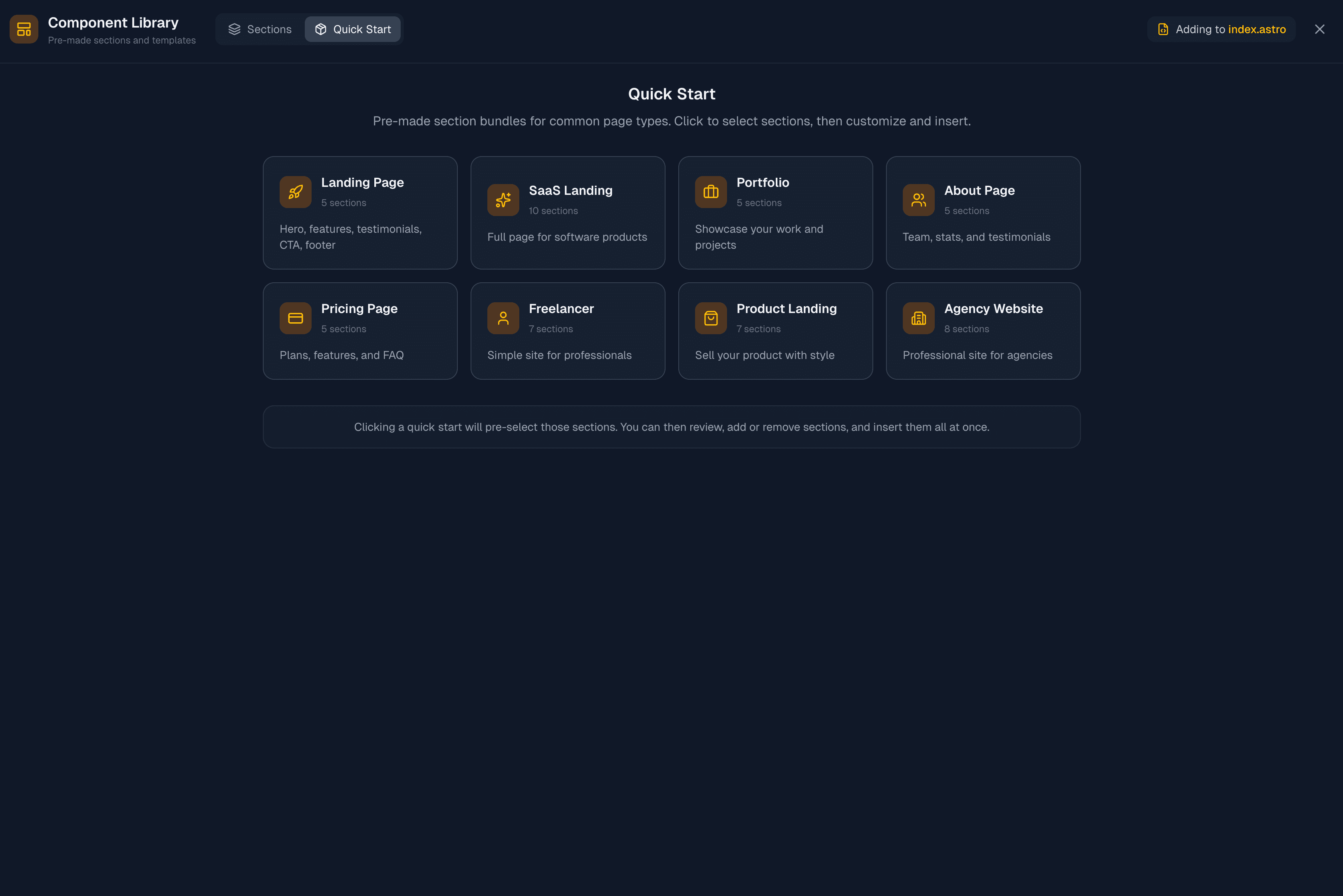
Using Quick Start
- Click on a Quick Start template
- All its sections are pre-selected
- You're switched to the Sections tab to review
- Add or remove sections as needed
- Click Insert All when ready
This is the fastest way to build a complete page.
Section vs Page Preview
When you have multiple sections selected:
- Section view - Shows only the currently selected section
- Page view - Shows all selected sections stacked together
Use Page view to see how your selections flow together before inserting.
What Gets Inserted
When you insert a section:
- If editing a page (.astro, .mdx) - The section HTML is added to your file
- Otherwise - A new component file may be created
Sections use Tailwind CSS classes and are designed to work with PhantomWP's design token system.
Customizing Sections
After inserting, customize sections by:
- Editing text - Change headings, descriptions, button labels
- Swapping images - Replace placeholder images with your own
- Adjusting colors - Modify Tailwind classes or use design tokens
- Adding/removing items - Duplicate or remove feature cards, testimonials, etc.
Using the AI Assistant
Ask the AI Assistant to customize sections:
- "Change the background to a gradient"
- "Add a fourth pricing tier"
- "Make this section full-width"
Tips
Start with Quick Start
For new pages, use Quick Start to get a complete structure, then customize.
Preview Theme Colors
Always preview with a theme color close to your brand - it helps visualize the final result.
Check Mobile
After inserting, resize the preview panel to check how sections look on mobile.
Remove What You Don't Need
It's easier to remove sections than to add them one by one. Start with more and trim down.
Troubleshooting
Sections Not Loading
- Check your internet connection
- Refresh the page
- Try closing and reopening the library
Insert Not Working
- Make sure you have a file open
- The file should be a page (.astro, .mdx)
- Check the header to see which file is targeted
Preview Blank
- Wait for the preview to load (can take a moment)
- Try selecting a different theme color
- Switch between Preview and Code view
Next Steps
- Visual Editor - Edit inserted sections visually
- AI Assistant - Get help customizing sections
- Media Manager - Replace placeholder images