Font Manager
Browse, preview, and add fonts from Fontsource to your Astro project.
Font Manager
The Font Manager lets you browse and install fonts from the Fontsource library. Once installed, select your fonts in the Theme Studio's Typography section and click Apply Theme to activate them.
Opening the Font Manager
Click the Type icon (T) in the header toolbar to open the Font Manager panel.
Browsing Fonts
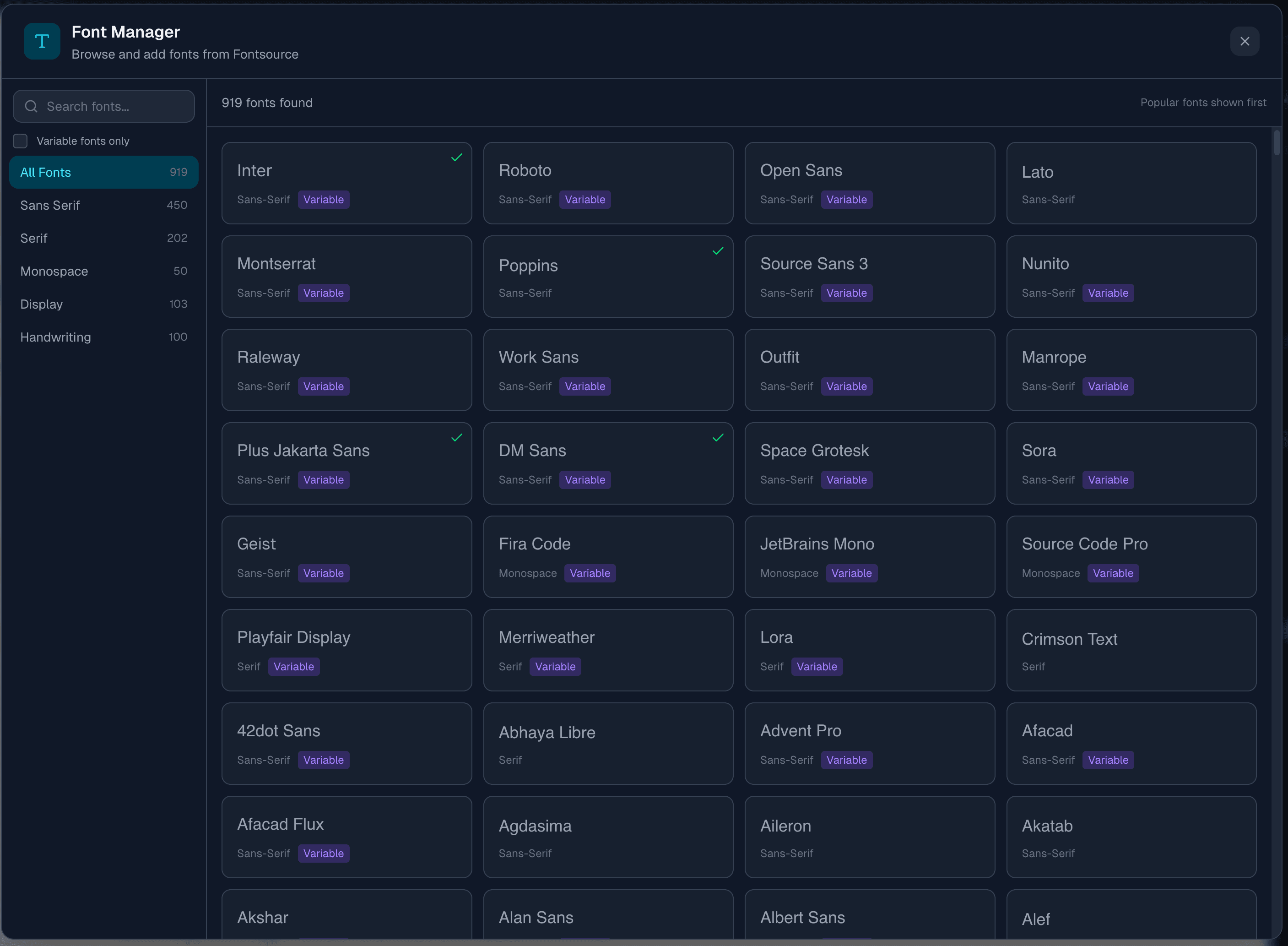
The Font Manager provides access to the entire Fontsource library - over 1,500 open-source fonts.
Categories
Filter fonts by category using the sidebar:
| Category | Description |
|---|---|
| All Fonts | Complete font library |
| Sans Serif | Clean, modern fonts without serifs |
| Serif | Traditional fonts with decorative serifs |
| Monospace | Fixed-width fonts for code |
| Display | Decorative fonts for headings |
| Handwriting | Script and handwritten styles |
Search
Use the search bar to find fonts by name. Popular fonts like Inter, Roboto, and Poppins appear first when not searching.
Variable Fonts
Check Variable fonts only to filter for fonts with variable font support. Variable fonts allow smooth weight and style transitions with a single file.
Selecting a Font
Click any font to select it. The right panel shows:
- Font name and category
- Variable font badge (if applicable)
- Version number
- Link to Fontsource for detailed documentation
Previewing Fonts
Preview Text
The preview area shows your selected font with customizable sample text:
- Size options - Small, Medium, or Large preview
- Custom text - Type your own preview text
- Full character set - See uppercase, lowercase, and numbers
The preview loads directly from Google Fonts CDN for accurate rendering.
Selecting Weights
Choose which font weights to install:
- 400 (Regular) and 700 (Bold) are selected by default
- Click any weight to toggle selection
- At least one weight must be selected
Common weight mappings:
| Weight | Name |
|---|---|
| 100 | Thin |
| 200 | Extra Light |
| 300 | Light |
| 400 | Regular |
| 500 | Medium |
| 600 | Semi Bold |
| 700 | Bold |
| 800 | Extra Bold |
| 900 | Black |
Installing Fonts
When you click Add to Project, the Font Manager installs the @fontsource/{font-id} npm package into your project. This makes the font available for use but does not activate it yet.
Note: Installing a font triggers an Astro dev server restart (since
package.jsonchanges). The preview may briefly go blank while the server restarts -- this is normal.
Activating a Font
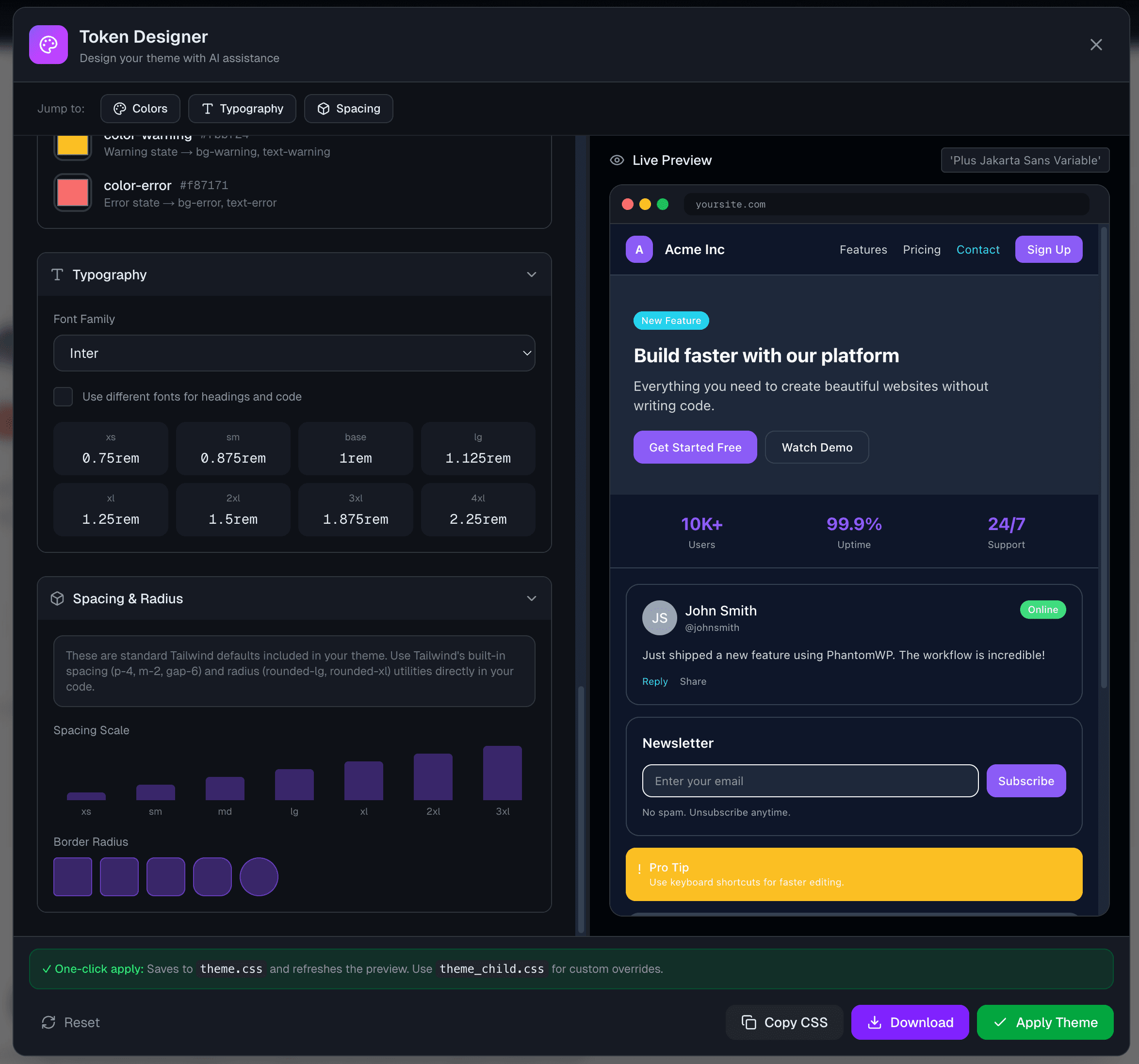
After installing a font, you need to select it in Theme Studio to actually use it.
- Open Theme Studio (palette icon in the toolbar)
- Expand the Typography section
- Your installed fonts appear at the top of the dropdown under "Installed Fonts"
- Select a font for:
- Body Font (
--font-sans) -- used for all body text - Heading Font (
--font-heading) -- enable "Use different fonts for headings and code" - Code Font (
--font-mono) -- used for code blocks
- Body Font (
- Click Apply Theme
When you apply the theme, two things happen automatically:
- Your
theme.cssis updated with the selected font variables - The font import (e.g.
import '@fontsource/inter';) is added inside the frontmatter ofBaseLayout.astro
If you switch fonts later, the old import is removed and replaced with the new one.
Direct Usage in Components
You can reference fonts in your components using the Tailwind classes defined by your theme tokens:
<h1 class="font-heading text-4xl">Welcome</h1>
<p class="font-sans">Body text uses the sans font.</p>
Managing Installed Fonts
Viewing Installed Fonts
Fonts you've already installed show a green checkmark in the grid and an Installed badge in the details panel.
Uninstalling Fonts
To remove a font:
- Select the installed font in the Font Manager
- Click the Uninstall button
- The npm package is removed from your project
If the font was active in your theme, open Theme Studio and select a different font, then click Apply Theme to update the import.
Best Practices
Performance
- Limit font families - Use 1-2 font families maximum
- Limit weights - Only install weights you actually use
- Use variable fonts - One file covers all weights smoothly
Typography Pairing
Common font pairings:
| Use Case | Heading | Body |
|---|---|---|
| Modern | Inter | Inter |
| Classic | Playfair Display | Lora |
| Technical | Space Grotesk | Source Sans 3 |
| Friendly | Poppins | Open Sans |
Variable Font Benefits
Variable fonts offer:
- Smaller file size - One file vs multiple weight files
- Smooth animations - Animate between any weight value
- Flexibility - Use any weight, not just predefined ones
Troubleshooting
Font Not Applying
If an installed font doesn't appear:
- Make sure you selected the font in Theme Studio and clicked Apply Theme
- Check that the font import exists inside the frontmatter of
BaseLayout.astro - Save and wait for hot reload
- Check browser dev tools for CSS conflicts
Installation Failed
If installation fails:
- Verify your Codespace is running
- Check the WebSocket connection (green indicator)
- Try refreshing the page
- Check the terminal for npm errors
Next Steps
- Icon Manager - Add icons to your project
- Visual Editor - Style elements visually
- Component Library - Pre-built sections