Token Designer
Define your site's design tokens -- colors, typography, spacing -- and generate a Tailwind v4 theme.
Token Designer
The Token Designer is a visual editor for your site's design tokens. It generates a Tailwind v4 theme.css file that defines colors, typography, spacing, border radius, and shadows for your Astro site. Every change updates a live preview so you can see exactly how your site will look.
Opening the Token Designer
Click the Palette icon in the header toolbar to open the Token Designer modal.
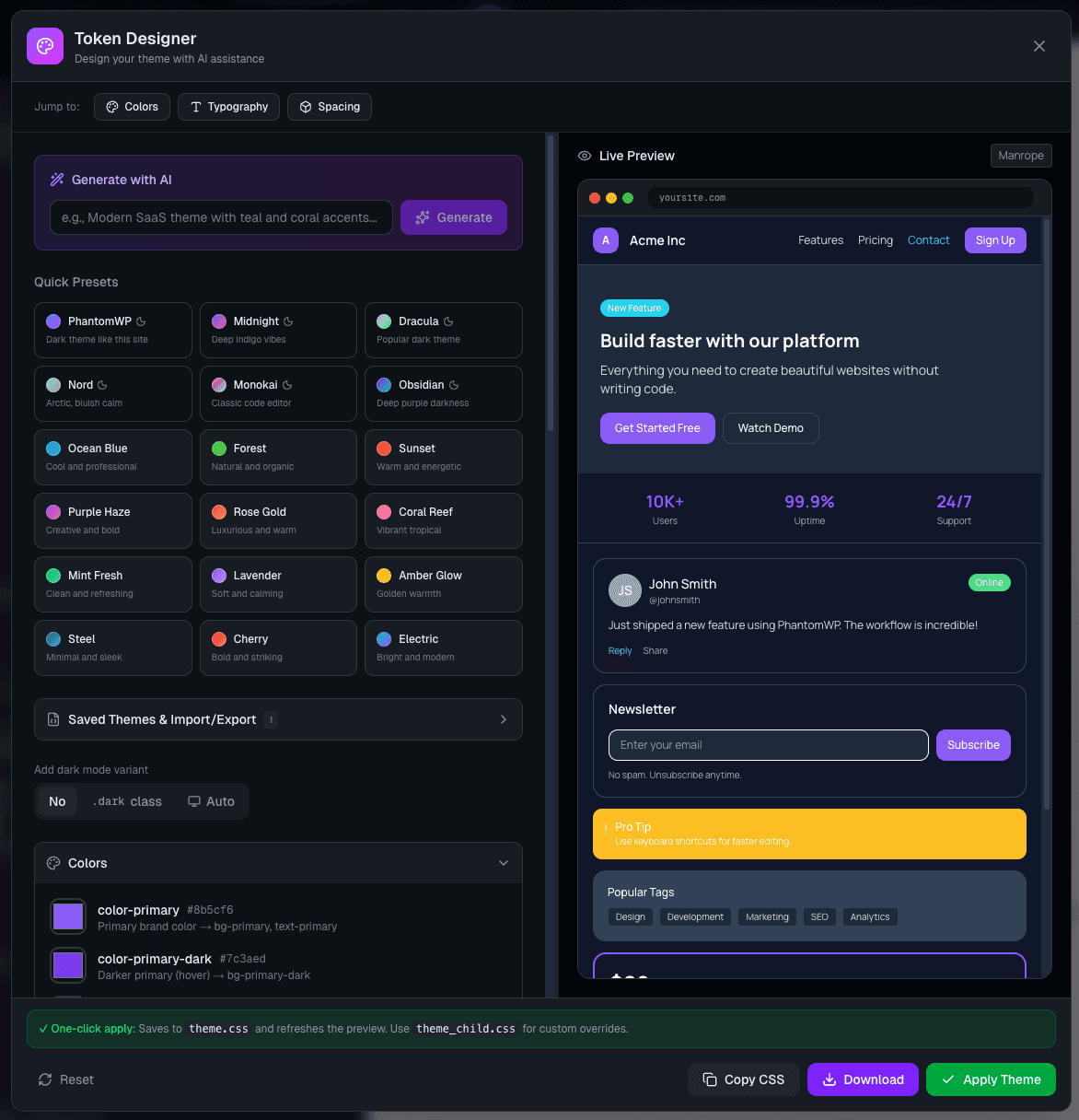
Layout
The Token Designer uses a two-panel layout:
| Panel | Description |
|---|---|
| Left (Editor) | All editing sections -- AI generation, presets, colors, typography, spacing |
| Right (Preview) | Live preview showing a sample page with your current tokens |
Quick-jump buttons at the top let you scroll directly to Colors, Typography, or Spacing.
AI Theme Generation
At the top of the editor panel, a prompt box lets you describe the theme you want. Type a description like "Modern SaaS theme with teal and coral accents" and click Generate. The AI produces a full color palette (light and dark), and recommends a font pairing.
AI generation uses your configured API key (Anthropic, OpenAI, or Google -- checked in that order). If no key is available, it falls back to keyword-based generation.
Preset Themes
Below the AI box, a grid of 18 preset themes gives you a one-click starting point.
Dark Presets
| Preset | Style |
|---|---|
| PhantomWP | Default dark theme matching the PhantomWP brand |
| Midnight | Deep indigo tones |
| Dracula | Popular editor dark palette |
| Nord | Arctic, bluish tones |
| Monokai | Classic code editor palette |
| Obsidian | Deep purple and dark grays |
Light Presets
Ocean Blue, Forest, Sunset, Purple Haze, Rose Gold, Coral Reef, Mint Fresh, Lavender, Amber Glow, Steel, Cherry, Electric.
Click any preset to apply its colors immediately. Dark presets also set appropriate surface and content colors and disable the dark mode variant since the theme is already dark. Light presets reset surface and content colors to default light values.
Colors
Expand the Colors section (palette icon) to edit every color token in your theme. There are 20 tokens organized into groups.
Color Groups
| Group | Tokens | Description |
|---|---|---|
| Primary | color-primary, color-primary-dark, color-primary-light | Main brand color and variants |
| Secondary | color-secondary, color-secondary-dark, color-secondary-light | Supporting brand color |
| Accent | color-accent, color-accent-dark, color-accent-light | Highlight and emphasis color |
| Surface | color-surface, color-surface-alt, color-surface-hover | Background colors for cards, panels, hovers |
| Content | color-content, color-content-light, color-content-lighter | Text and body copy colors |
| Outline | color-outline, color-outline-light | Borders and dividers |
| Status | color-success, color-warning, color-error | Feedback and alert colors |
Click any color swatch to open a color picker. Each token shows its corresponding Tailwind utility classes (e.g., bg-primary, text-primary).
Light and Dark Mode
A toggle at the top of the Colors section lets you switch between editing Light and Dark color sets. Each mode has its own full set of color tokens.
Dark Mode Strategy
Choose how dark mode is activated:
| Option | Behavior |
|---|---|
| None | Light mode only -- no dark variant generated |
| Class-based | Activates when .dark is added to <html> or <body> |
| Media query | Automatically follows the user's system preference via @media (prefers-color-scheme: dark) |
Typography
Expand the Typography section (type icon) to configure fonts for your site.
Font Selection
| Token | CSS Variable | Usage |
|---|---|---|
| Body Font | --font-sans | All body text, paragraphs, UI elements |
| Heading Font | --font-heading | Headings (h1-h6) -- enable "Use different fonts for headings and code" |
| Code Font | --font-mono | Code blocks and inline code |
Each dropdown lists available fonts. Fonts you have installed via the Font Manager appear at the top of the dropdown under an "Installed Fonts" heading. Below that, a set of default options is always available: Inter, Space Grotesk, Plus Jakarta Sans, DM Sans, Outfit, Sora, Manrope, JetBrains Mono, and Fira Code.
Installing Fonts First
Fonts must be installed from the Font Manager before they appear in the Typography dropdowns. Click the T icon in the toolbar to open it, browse or search for a font, select weights, and click Add to Project. Once installed, the font shows up at the top of every font dropdown in the Token Designer.
To install and activate a custom font:
- Open the Font Manager -- click the T icon in the toolbar
- Browse or search for a font
- Select weights and click Add to Project
- Close the Font Manager
- Open the Token Designer -- your installed font now appears at the top of the dropdowns
See the Font Manager documentation for full details on browsing, previewing, and installing fonts.
Custom Fonts Toggle
By default, all text uses the Body Font. Enable Use different fonts for headings and code to unlock the Heading Font and Code Font dropdowns. This lets you create typographic contrast -- for example, a display font for headings paired with a clean sans-serif for body text.
Font Size Scale
The Typography section also shows a read-only preview of the font size scale:
| Token | Size |
|---|---|
| xs | 0.75rem |
| sm | 0.875rem |
| base | 1rem |
| lg | 1.125rem |
| xl | 1.25rem |
| 2xl | 1.5rem |
| 3xl | 1.875rem |
| 4xl | 2.25rem |
These are Tailwind defaults. Use standard Tailwind classes like text-sm, text-lg, text-2xl in your components.
Font Preview
The live preview on the right panel loads your selected fonts from Google Fonts CDN so you can see accurate rendering as you experiment.
Spacing and Border Radius
Expand the Spacing & Radius section (box icon) to view the spacing and border radius scales.
Spacing Scale
| Token | Value |
|---|---|
| xs | 0.25rem |
| sm | 0.5rem |
| md | 1rem |
| lg | 1.5rem |
| xl | 2rem |
| 2xl | 3rem |
| 3xl | 4rem |
Visual bars show the relative sizes. Spacing tokens use --space-* to avoid conflicts with Tailwind's built-in --spacing-* variables.
Border Radius
| Token | Value |
|---|---|
| sm | 0.25rem |
| md | 0.375rem |
| lg | 0.5rem |
| xl | 0.75rem |
| full | 9999px |
Visual squares demonstrate each radius value.
Note: Spacing and radius are Tailwind defaults shown for reference. Use standard Tailwind utilities like
p-4,gap-6,rounded-lgdirectly in your code.
Saved Themes and Import/Export
Expand the Saved Themes & Import/Export section to manage your theme presets.
Saving a Theme
- Click Save Current Theme
- Enter a name
- The theme is saved to your browser's local storage
Saved themes store all color tokens (both light and dark). Load or delete saved themes from the list.
Exporting Colors
Click Export Colors to copy your color tokens as JSON to the clipboard. The format includes both light and dark color sets.
Importing a Theme
Click Import Theme and paste either:
- CSS containing
--color-*custom properties - JSON from a previous export
The Token Designer parses the input and applies the colors.
Note: Saved themes are stored in your browser's local storage, not in the Codespace. They persist across sessions on the same browser but are not shared between devices.
Live Preview
The right panel shows a simulated browser frame with a full sample page. It includes:
- Navigation bar
- Hero section with badge
- Stats row
- User card
- Form fields
- Alert notification
- Tags
- Price card
- Footer
Every element uses your actual color tokens and font selections. The preview updates in real-time as you make changes -- no need to save or refresh.
Applying Your Theme
When you're satisfied with your design, click Apply Theme in the footer. This does two things:
- Writes
src/styles/theme.css-- Your design tokens are saved as Tailwind v4@themeCSS variables - Updates font imports -- The correct
@fontsourceimport statements are added toBaseLayout.astro, and any old font imports are removed
Generated CSS
The output is a Tailwind v4 theme file:
@theme {
    --color-primary: #6366f1;
    --color-primary-dark: #4f46e5;
    --color-primary-light: #818cf8;
    /* ... all color tokens ... */

    --font-sans: "Inter", system-ui, sans-serif;
    --font-heading: "Inter", system-ui, sans-serif;
    --font-mono: "JetBrains Mono", monospace;

    /* spacing, radius, shadows */
}

/* Dark mode (if enabled) */
.dark {
    --color-primary: #818cf8;
    /* ... dark color overrides ... */
}
This creates Tailwind utility classes like bg-primary, text-content, border-outline, font-heading that you can use throughout your Astro components.
Using Tokens in Components
<section class="bg-surface p-8">
    <h2 class="font-heading text-3xl text-content">Welcome</h2>
    <p class="font-sans text-content-light">Body text with lighter color.</p>
    <button class="bg-primary text-white rounded-lg px-4 py-2 cursor-pointer hover:bg-primary-dark">
        Get Started
    </button>
</section>
Footer Actions
The modal footer provides additional actions:
| Action | Description |
|---|---|
| Reset | Restores all tokens to defaults |
| Copy CSS | Copies the generated CSS to your clipboard |
| Download | Downloads theme.css as a file |
| Apply Theme | Saves to your Codespace and closes the modal |
Workflow Summary
A typical workflow for setting up your site's design:
- Install fonts -- Open the Font Manager, browse fonts, and install the ones you want
- Open Token Designer -- Click the palette icon in the toolbar
- Pick a starting point -- Use a preset theme, generate one with AI, or start from scratch
- Customize colors -- Adjust primary, secondary, accent, surface, and content colors
- Set up dark mode -- Choose a strategy and edit the dark color set
- Configure typography -- Select your installed fonts for body, headings, and code
- Preview -- Check the live preview to make sure everything looks right
- Apply -- Click Apply Theme to write the CSS and font imports to your project
Existing Theme Detection
If your project already has a theme.css file, the Token Designer parses it on open. It extracts existing color variables, font selections, and dark mode configuration so you can continue editing where you left off.
Troubleshooting
Theme Not Applying
If your colors or fonts don't appear after clicking Apply Theme:
- Check that
src/styles/theme.csswas created (look in the file tree) - Verify that
theme.cssis imported in your main layout - Save and wait for hot reload
- Hard-refresh the preview if needed
Font Not Showing in Dropdown
If an installed font doesn't appear in the Typography dropdowns:
- Make sure the font was installed via the Font Manager (not manually)
- Check that the Codespace is running
- Try closing and reopening the Token Designer
Dark Mode Not Working
- Verify your dark mode strategy is set (class-based or media query)
- For class-based: ensure your JavaScript toggles the
.darkclass on<html> - For media query: check your system's dark mode setting
- Inspect the generated CSS to confirm the dark block exists
Colors Look Wrong in Preview
- Make sure you're editing the correct mode (light vs dark)
- Check for conflicting CSS in other stylesheets
- Try resetting to defaults and reapplying
Next Steps
- Font Manager -- Install fonts before using them in Typography
- Component Library -- Sections that use your design tokens
- Visual Editor -- Edit elements with a visual interface
- AI Assistant -- Get help refining your design