IDE Overview
A complete tour of the PhantomWP IDE and all its features.
IDE Overview
The PhantomWP IDE is a powerful web-based development environment designed specifically for building Astro sites. It runs entirely in your browser, powered by GitHub Codespaces.
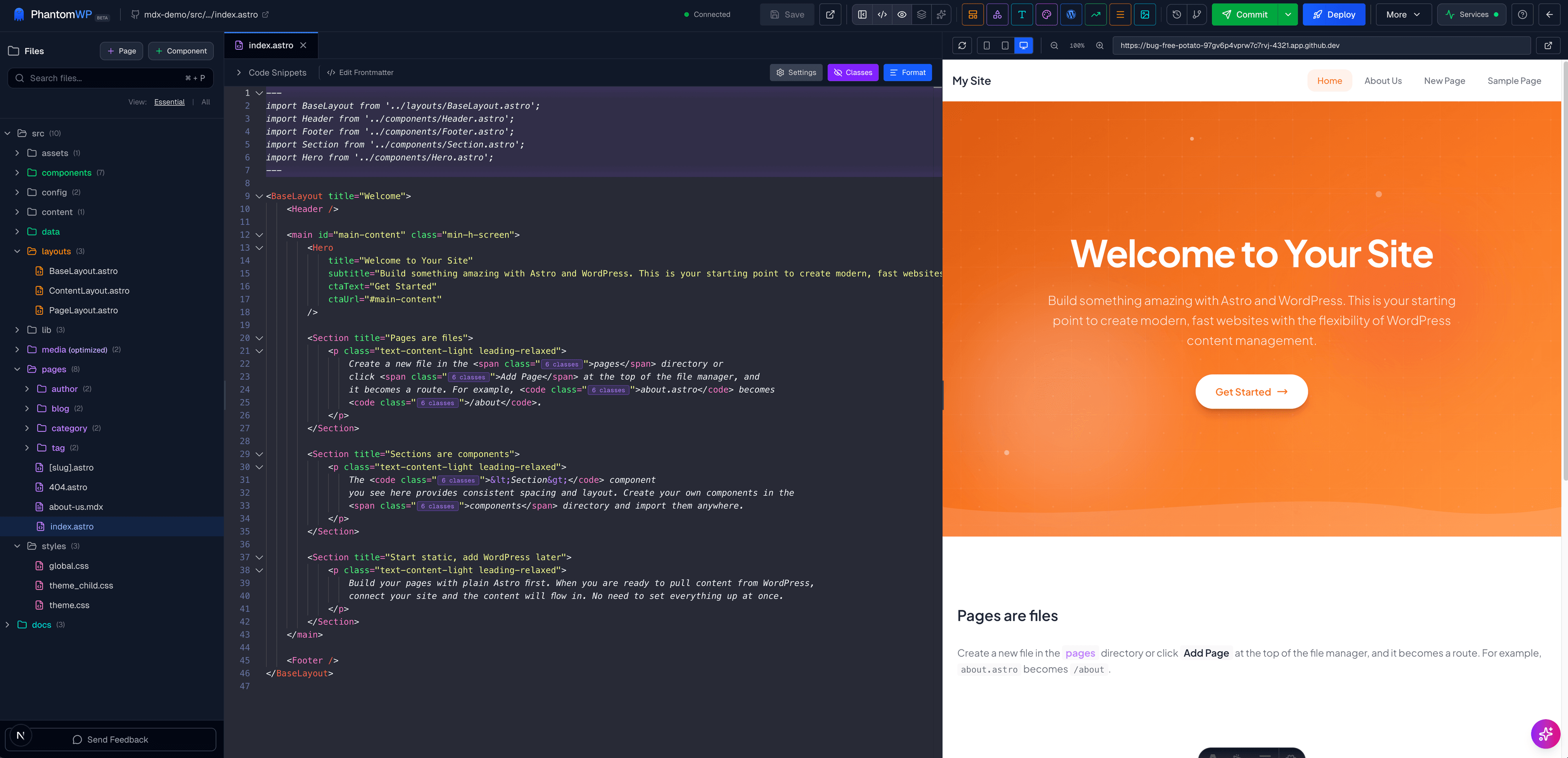
Main Sections
Header Bar
The header bar provides quick access to essential functions. Click the Help icon (?) to open an interactive guide that explains every toolbar button.
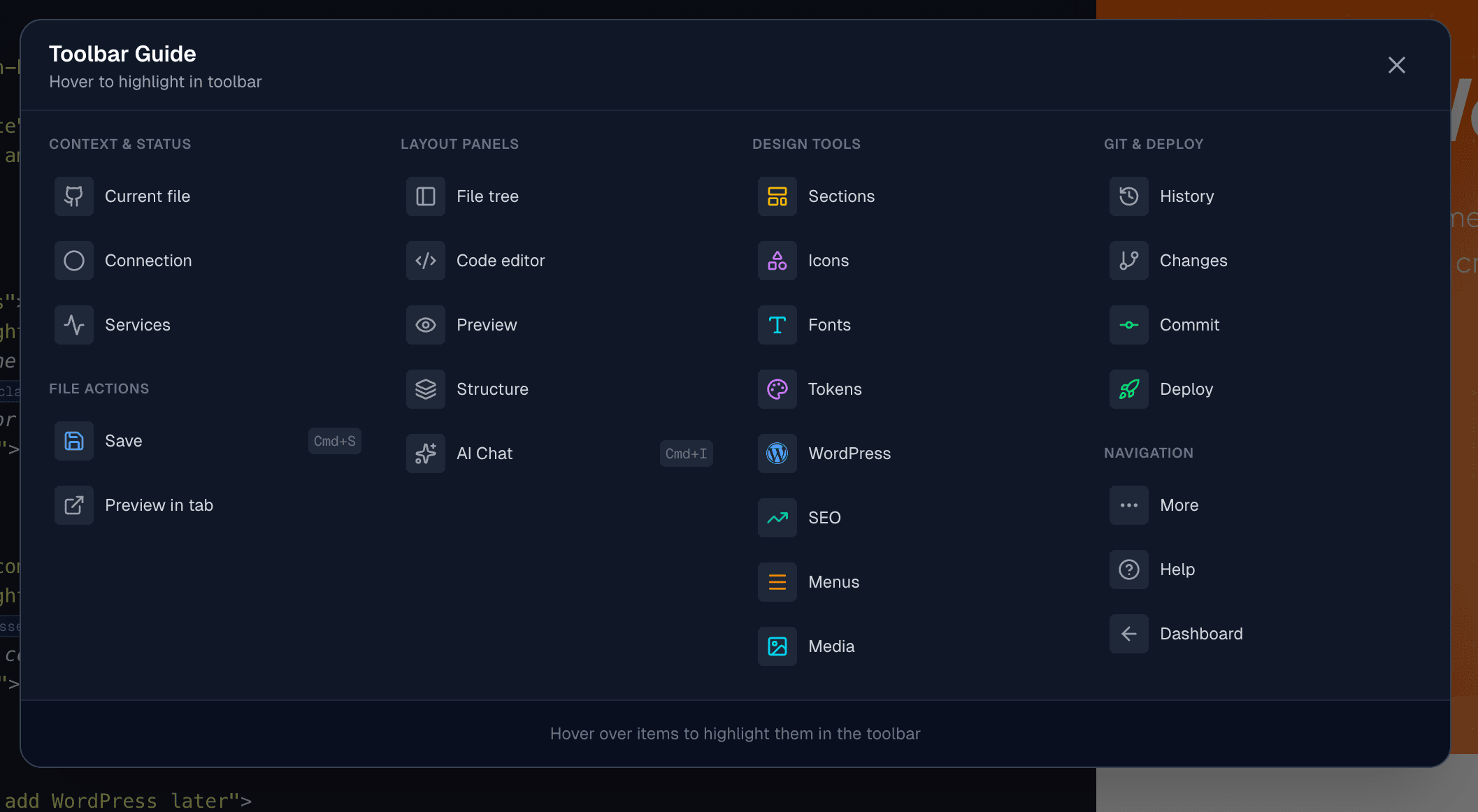
When you hover over an item in the help dialog, it highlights the actual button in the toolbar so you can easily find it.
The toolbar is organized into sections:
- Context & Status - Current file, connection status, services
- Layout Panels - Toggle file tree, editor, preview, structure, AI chat
- Design Tools - Sections library, icons, fonts, tokens, WordPress, SEO, menus, media
- Git & Deploy - File history, changes, commit, deploy
- Navigation - More options, help, dashboard
For the complete publishing flow, including the guided resolver shown when newer GitHub changes overlap with yours, see Publishing Changes and Resolving Conflicts.
File Tree (Left Panel)
The file tree shows all files in your project:
- Click a file to open it in the editor
- Right-click for context menu (rename, delete)
- Drag and drop to move files
- Use the + buttons to create new files or folders
Key folders in your Astro project:
src/pages/- Your site's pages (routes)src/content/- Blog posts and other contentsrc/components/- Reusable componentssrc/layouts/- Page layoutspublic/- Static assets (images, fonts)
Code Editor (Center Panel)
The Monaco-powered editor provides:
- Syntax highlighting for all major languages
- IntelliSense autocomplete for Astro, TypeScript, and more
- Error detection with inline diagnostics
- Multiple tabs for working with several files
- Code folding to collapse sections
- Find and replace with regex support
Keyboard Shortcuts
- Save - Mac:
Cmd+S/ Windows:Ctrl+S - Find - Mac:
Cmd+F/ Windows:Ctrl+F - Replace - Mac:
Cmd+H/ Windows:Ctrl+H - Go to Line - Mac:
Cmd+G/ Windows:Ctrl+G - Toggle Comment - Mac:
Cmd+// Windows:Ctrl+/ - Format Document - Mac:
Shift+Option+F/ Windows:Shift+Alt+F
Live Preview (Right Panel)
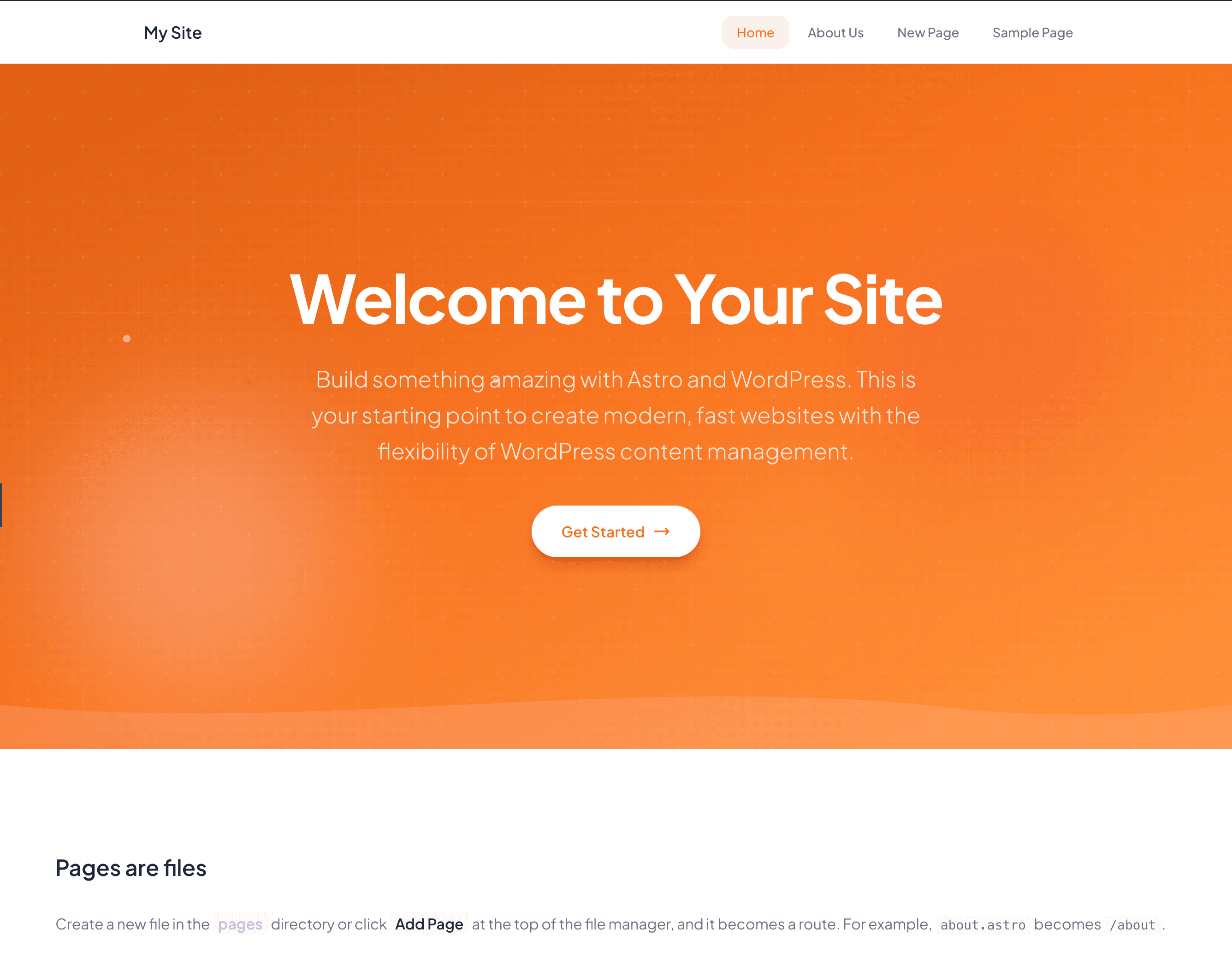
The preview panel shows your site as it will appear to visitors:
- Auto-refreshes when you save changes
- Navigate through your site like a real user
- Responsive testing - resize the panel to test layouts
- Refresh button to manually reload
Tab Bar
Work with multiple files using tabs:
- Click a tab to switch files
- Middle-click or click the x to close a tab
- Unsaved changes shown with a dot indicator
- Right-click for options (Close Others, Close All)
Right Panel Tabs
Toggle between different views in the right panel:
Preview Tab
Shows the live preview of your site.
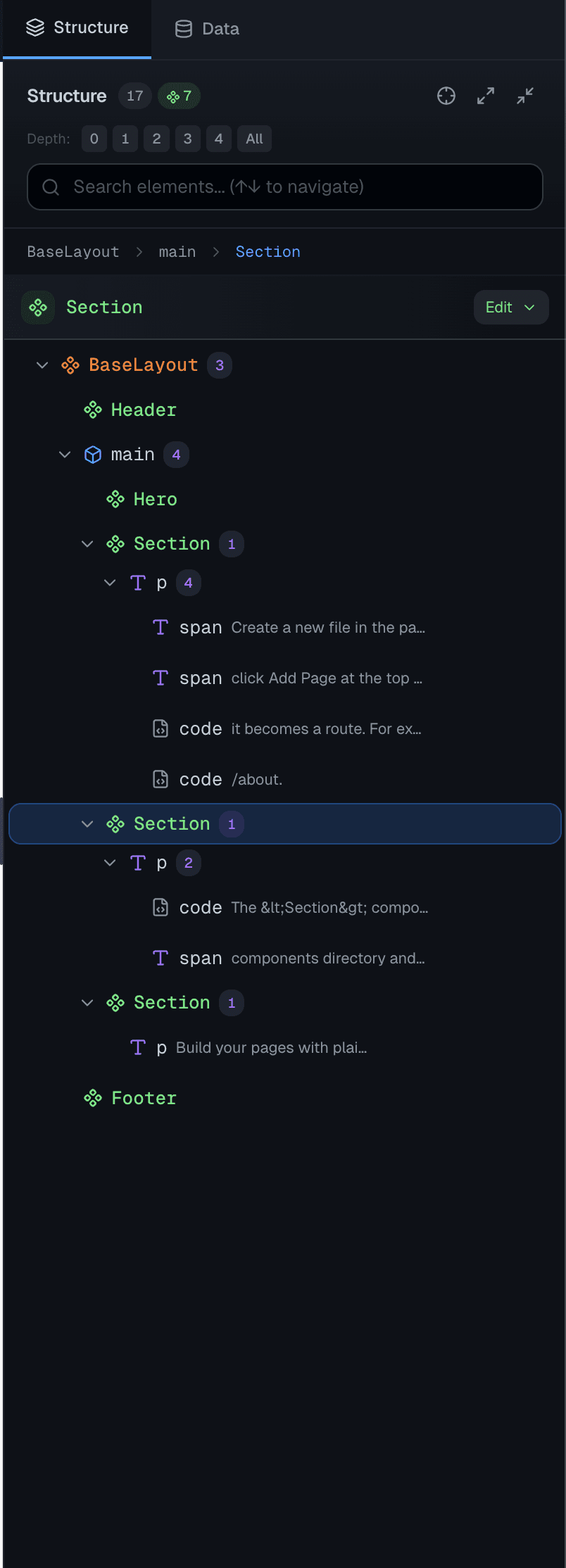
HTML Tree Tab
Inspect the rendered HTML structure. Useful for:
- Understanding the DOM hierarchy
- Debugging layout issues
- Finding elements to style
Data Panel Tab
Shows available WordPress data when connected:
- Posts and pages
- Categories and tags
- Media items
- Custom fields
Editor Modes
Code Mode (Default)
Edit files as raw code with full syntax support.
Visual Mode (Markdown Files)
For .md and .mdx files, switch to Visual Mode for a WYSIWYG experience:
- Bold, italic, and other formatting
- Insert images and links
- Preview renders inline
- No markdown syntax knowledge needed
Toggle between modes using the button in the editor toolbar.
Built-in Tools
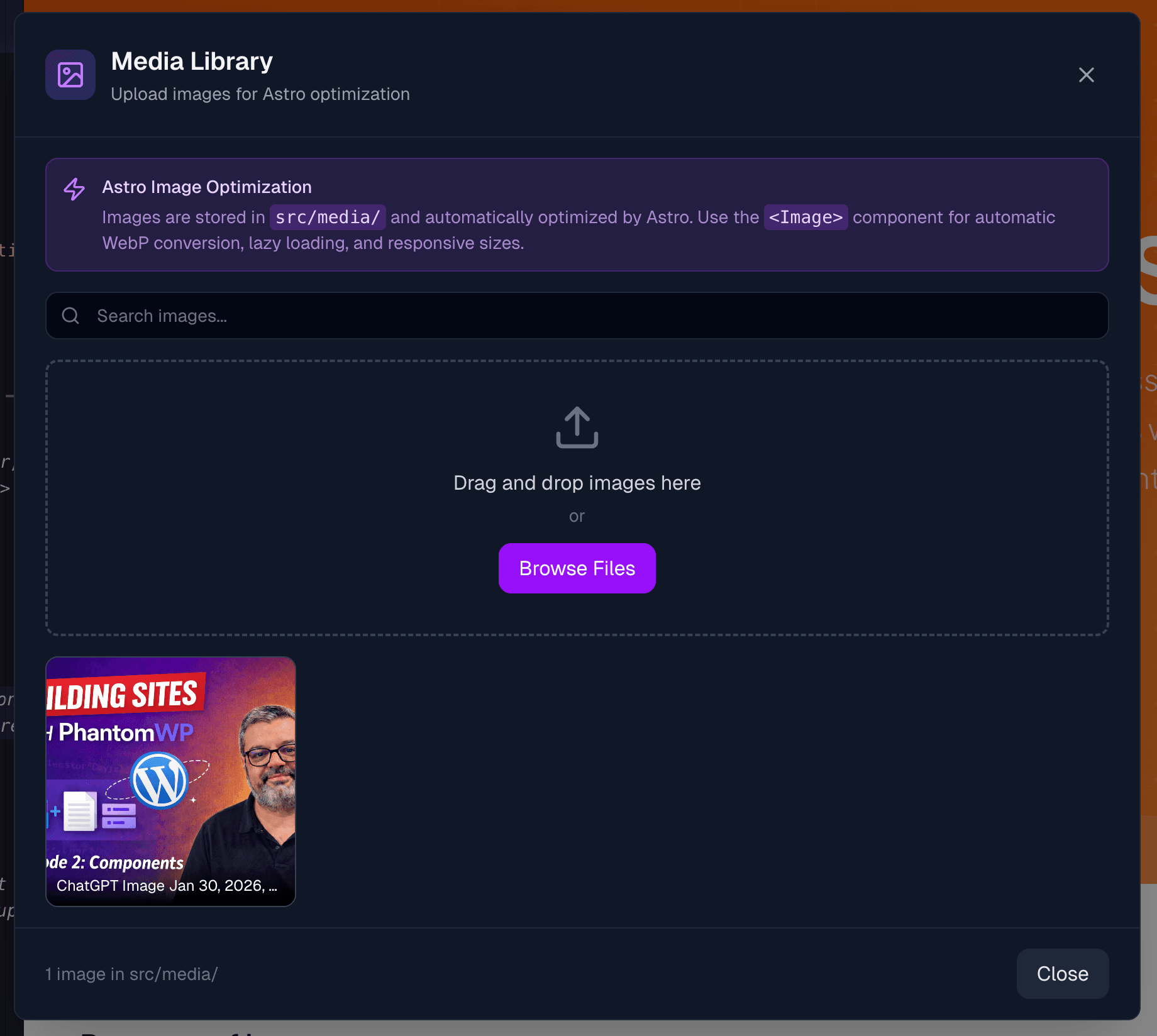
Media Manager
Upload and manage images and other assets:
- Click the Media icon in the header
- Drag and drop files or click to upload
- Click an image to copy its path
Git Integration
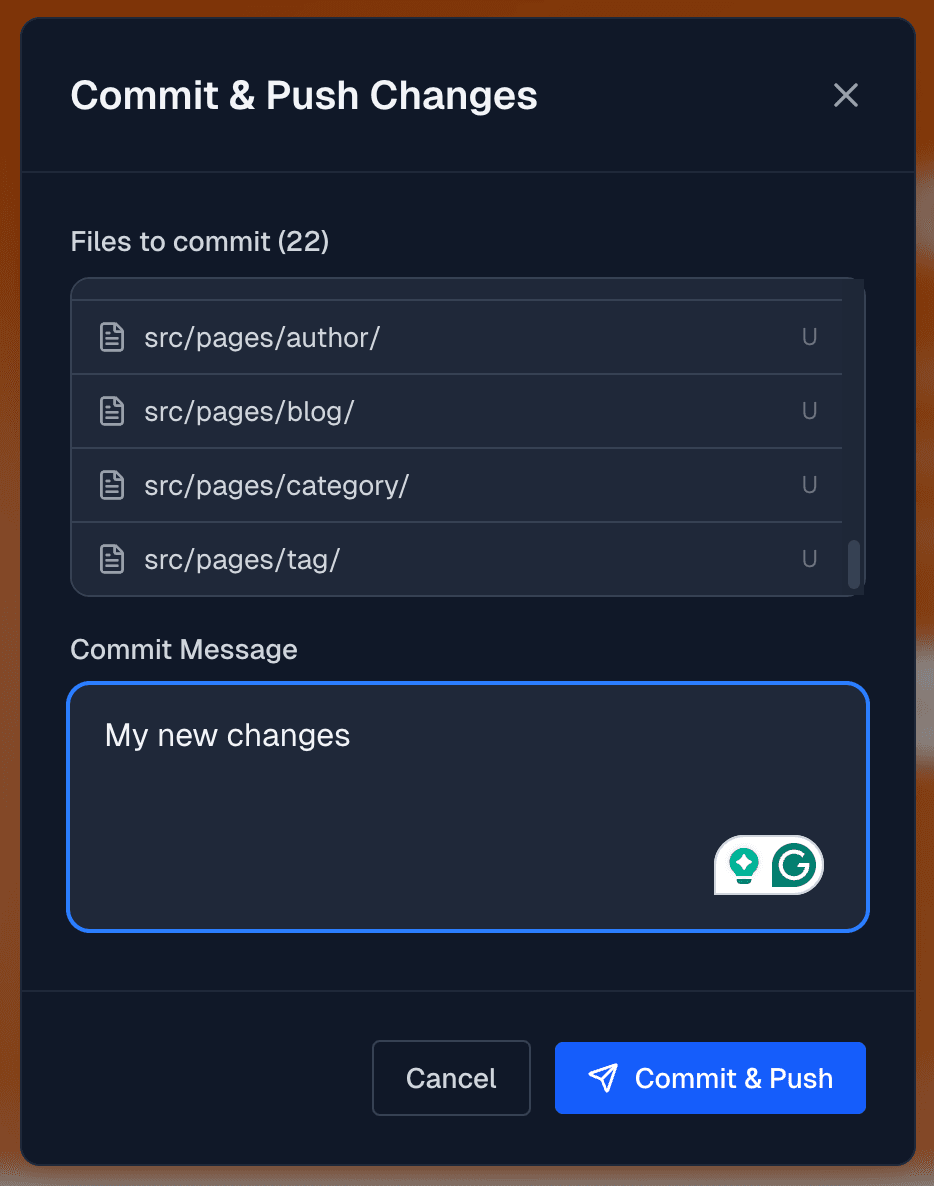
Version control built right in:
- Changes - See modified files
- Commit - Save changes with a message
- History - View past commits
- Push - Send changes to GitHub
Component Library
Access pre-built components:
- Click the Components icon
- Browse available components
- Click to insert into your file
Code Snippets
Quick access to common code patterns:
- Frontmatter templates
- Component imports
- Layout wrappers
- And more
Customizing the IDE
Panel Sizes
Drag the borders between panels to resize them. Your preferences are saved automatically.
Toggle Panels
- Preview: Click the eye icon to show/hide
- AI Chat: Click the AI icon to toggle
Editor Settings
Access via Settings icon:
- Font size
- Tab size
- Word wrap
- Theme (coming soon)
Performance Tips
- Close unused tabs to free up memory
- Use the search (
Cmd+P/Ctrl+P) instead of browsing files - Split large files into smaller components
- Clear browser cache if you experience slowdowns
Keyboard Shortcuts Reference
File Operations
- New File - Mac:
Cmd+N/ Windows:Ctrl+N - Save - Mac:
Cmd+S/ Windows:Ctrl+S - Save All - Mac:
Cmd+Option+S/ Windows:Ctrl+Alt+S - Close Tab - Mac:
Cmd+W/ Windows:Ctrl+W
Navigation
- Quick Open - Mac:
Cmd+P/ Windows:Ctrl+P - Go to Line - Mac:
Cmd+G/ Windows:Ctrl+G - Go to Symbol - Mac:
Cmd+Shift+O/ Windows:Ctrl+Shift+O
Editing
- Cut Line - Mac:
Cmd+X/ Windows:Ctrl+X - Copy Line - Mac:
Cmd+C/ Windows:Ctrl+C - Move Line Up - Mac:
Option+Up/ Windows:Alt+Up - Move Line Down - Mac:
Option+Down/ Windows:Alt+Down - Duplicate Line - Mac:
Shift+Option+Down/ Windows:Shift+Alt+Down - Delete Line - Mac:
Shift+Cmd+K/ Windows:Ctrl+Shift+K
Next Steps
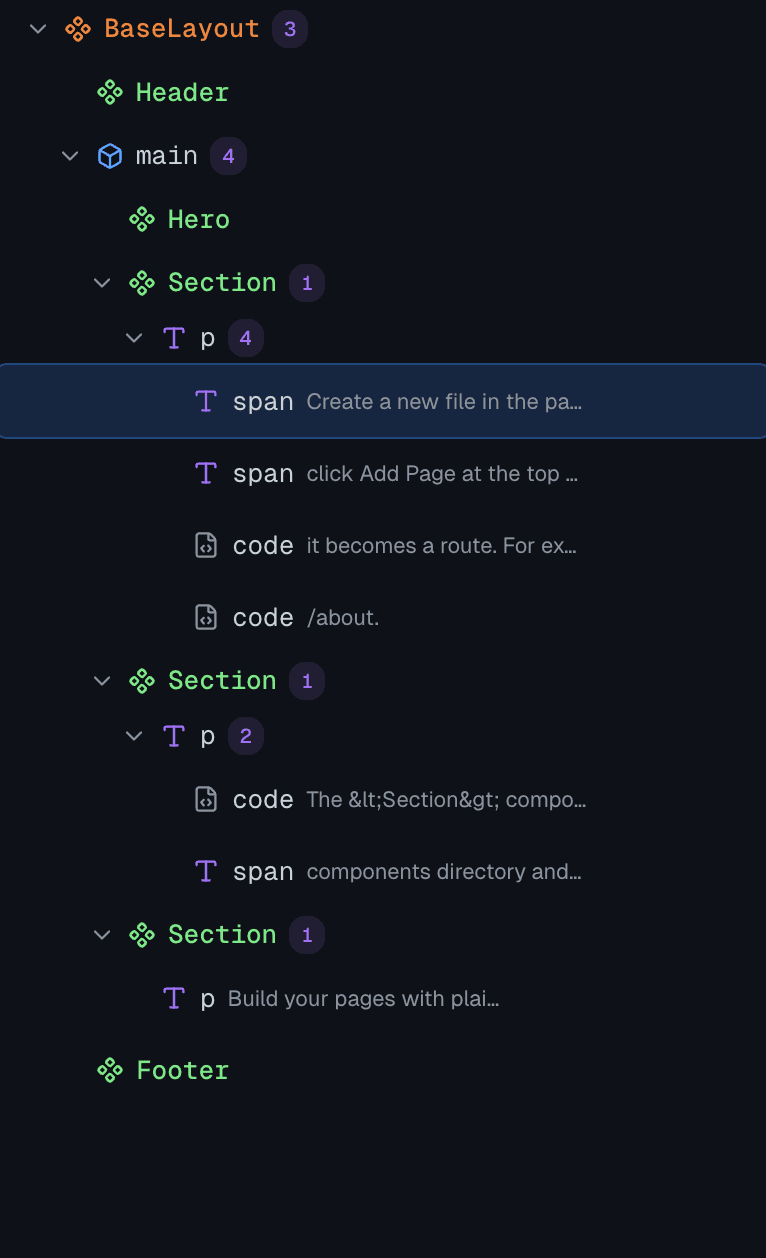
- Visual Editor - Edit pages with the HTML Tree View
- Menu Builder - Create navigation menus visually
- Component Library - Pre-built sections to drop in
- Media Manager - Upload and manage images
- AI Assistant - Get AI help while coding
- WordPress Data - Browse and insert WordPress content