Browsing WordPress Data
Browse your WordPress content and copy Astro template snippets directly in the IDE.
Browsing WordPress Data
The WordPress Data Browser lets you explore your connected WordPress content and quickly copy Astro template snippets for use in your pages.
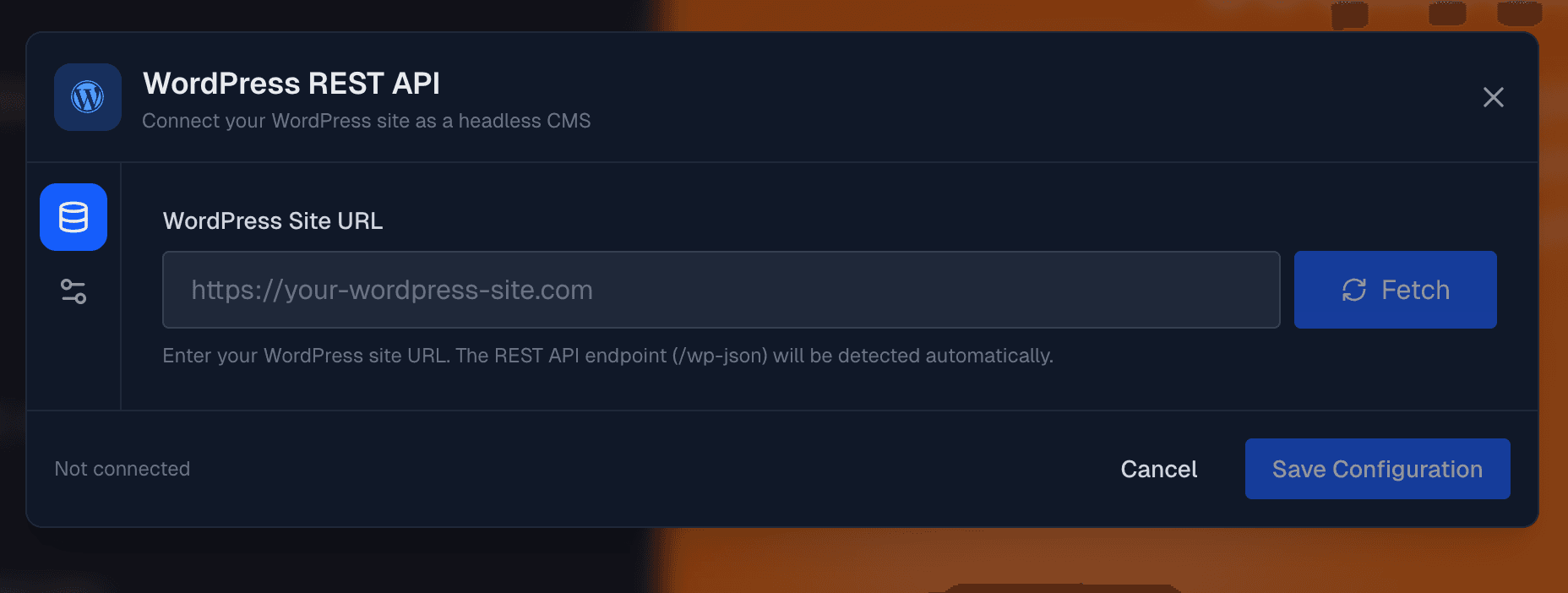
Opening the Data Browser
Click the WordPress icon in the header bar, then select Browse Content. This opens the Data Browser modal.
You must have a WordPress site connected first. If you see "WordPress Not Connected", go to the WordPress settings to configure your REST API connection.
Layout Overview
The Data Browser has several key areas:
| Area | Purpose |
|---|---|
| Header | Shows connected site name, refresh button, close button |
| Tabs | Switch between content types (Posts, Pages, Media, etc.) |
| Search | Filter content by keyword |
| Content List | Browse items with expandable details |
| Footer | Pagination controls |
Content Tabs
Browse different types of WordPress content:
Posts
View all published blog posts:
- Title and excerpt preview
- Publication date
- Featured image thumbnail
- Author name
Pages
Browse WordPress pages:
- Page title
- Slug/URL
- Featured image (if set)
Media
Access your media library:
- Image thumbnails
- File names
- Source URLs
Categories
View post categories:
- Category name
- Slug
- Post count
Tags
Browse post tags:
- Tag name
- Slug
- Post count
Users
See WordPress users:
- Display name
- Avatar
- Bio/description
Custom Post Types
If your WordPress site has custom post types (e.g., Products, Portfolio, Events), they appear as additional tabs with an orange highlight.
Searching Content
Use the search box to filter content within the active tab:
- Type your search term
- Results filter automatically after a short delay
- Search works on titles, content, and slugs
Expanding Items
Click any item to expand it and see available fields:
- Click on an item row to expand
- View all available data fields
- Click a field to copy its Astro template snippet
- A "View on WordPress" link opens the original content
Available Fields
When you expand a post or page, you can copy snippets for:
| Field | Snippet Generated |
|---|---|
| ID | {post.id} |
| Title | {post.title.rendered} |
| Slug | {post.slug} |
| Content | <div set:html={post.content.rendered} /> |
| Excerpt | {post.excerpt.rendered} |
| Date | {new Date(post.date).toLocaleDateString()} |
| Link | {post.link} |
| Featured Image | {getFeaturedImageUrl(post)} |
| Author | {getAuthor(post)?.name} |
Click any field to copy its snippet to your clipboard. If you have the editor open, the snippet is also ready to paste.
Code Examples Tab
The Code Examples tab (purple) provides complete, ready-to-use Astro templates:
| Example | Description |
|---|---|
| Blog Post List | Display posts with images and excerpts |
| Single Post Page | Dynamic post page with getStaticPaths |
| Navigation Menu | Build nav from WordPress pages |
| Category Archive | Posts filtered by category |
| Sidebar Widget | Categories and recent posts |
| Author Page | Author info with their posts |
| Search Results | Search posts and display results |
| Static Pages | Generate pages from WordPress |
Click any example to expand and view the full code. Use the Copy button to copy the entire template.
Using Copied Snippets
In a Loop Context
When building a posts loop, the copied snippets use the appropriate variable name:
---
import { getPosts, getFeaturedImageUrl, formatDate } from '../lib/wordpress';

const posts = await getPosts({ perPage: 10 });
---

{posts.map(post => (
  <article>
    <h2>{post.title.rendered}</h2>
    <time>{new Date(post.date).toLocaleDateString()}</time>
    <div set:html={post.excerpt.rendered} />
  </article>
))}
For Single Items
When working with a single post or page:
---
const post = await getPost(slug);
---

<article>
  <h1 set:html={post.title.rendered} />
  <div set:html={post.content.rendered} />
</article>
Refreshing Data
Click the Refresh button (circular arrow icon) in the header to reload content from WordPress. This is useful when you've:
- Added new posts or pages
- Updated existing content
- Modified categories or tags
Pagination
Navigate through large content libraries:
- Previous - Go to the previous page of results
- Next - Load more items
- Items per page: 20
The footer shows "Showing X of Y items" to indicate your position.
Tips
Generate the WordPress Client First
Before using snippets, make sure you've clicked Generate Pages in the WordPress settings. This creates the src/lib/wordpress.ts file with helper functions like getPosts, getFeaturedImageUrl, etc.
Use Code Examples as Starting Points
The Code Examples tab provides tested, working templates. Copy them as a foundation and customize for your needs.
Keep the Browser Open While Coding
You can keep the Data Browser open while working in the editor. Click fields to copy snippets as you build your templates.
Next Steps
- Importing Content - Import all content at once
- Connecting WordPress - Configure WordPress settings
- WordPress Security - Secure your WordPress installation