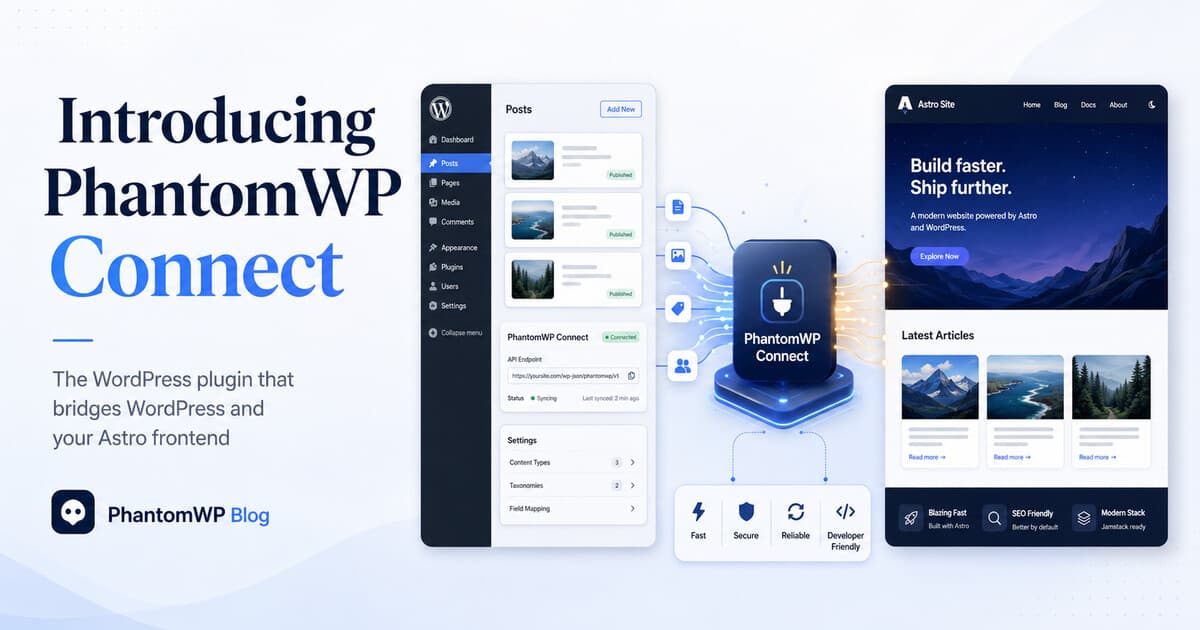
Introducing PhantomWP Connect: The WordPress Plugin That Bridges WordPress and Your Astro Frontend
PhantomWP Connect is the WordPress plugin that turns your CMS into a fully wired backend for a modern Astro frontend. Signed two-way communication, visitor JWT auth, agentic AI that can create posts and custom post types for you, and self-pairing in under a minute.
Every headless WordPress setup eventually hits the same wall.
You can read public posts through the REST API without much effort. That part is easy. But the moment you want to do anything real, such as letting visitors log in, creating new custom post types from an AI prompt, writing back to WordPress, or scaffolding a WooCommerce storefront, you discover that the REST API alone is not enough. You need authentication. You need signed requests. You need a way for WordPress to trust where the call is coming from.
That is what PhantomWP Connect is for.
What PhantomWP Connect Is
PhantomWP Connect is a small WordPress plugin that you install on your WordPress site. Once activated, it turns your WordPress into a fully wired backend for your PhantomWP-generated Astro frontend.
It is not a builder. It does not change your themes, your posts, or your admin. It sits quietly in the background and adds a secure communication layer between PhantomWP and your site.
In a single install, this WordPress plugin gives you:
- Self-pairing with your PhantomWP project on the first admin visit
- Signed two-way communication between PhantomWP and WordPress
- JWT visitor authentication for login, registration, and account flows on your Astro site
- Agentic AI that writes to WordPress for you, creating posts, pages, custom post types, taxonomies, and field groups directly in your site from a chat prompt
- Encrypted at-rest storage for keys and secrets
- WooCommerce integration for customer login, registration, and account features
Let's walk through what each of these actually does.
One-Click Pairing, No Copy-Pasting Keys
When you connect a WordPress site from the PhantomWP IDE, we prepare a custom zip for your specific project. That zip contains a one-time bootstrap token baked into it.
You upload it to wp-admin > Plugins > Add New > Upload Plugin, activate it, and then go back to PhantomWP. On the first admin visit inside WordPress, the plugin self-pairs using that bootstrap token. The token then self-destructs.
No API keys to copy. No secrets to paste into two places. No wp-config.php edits. No .htaccess rewrites. The pairing happens once, and from that point forward both sides know how to talk to each other.
Signed Two-Way Communication
The problem with the raw WordPress REST API is that authentication is all-or-nothing. You either expose credentials that can do everything, or you expose read-only public endpoints and hope that is enough.
PhantomWP Connect replaces that with ECDSA P-256 signed requests. Every call from PhantomWP to your site carries:
- A DER-encoded ECDSA signature with SHA-256 digest
- A timestamp and nonce (with a narrow five-minute window)
- Scope bound to your specific project's install ID and normalized host
PhantomWP holds the signing private key, encrypted at rest with a key-encryption key. WordPress only holds the public key and repo metadata. A signature captured on one project cannot be replayed against another. Tokens cannot outlive their window. And because the plugin is just PHP running in your WordPress, you can inspect every line of what it does.
On top of that, every request also carries an X-PhantomWP-Secret header. If you want to harden the perimeter and have your edge (Nginx, Apache, Cloudflare) reject any traffic that does not carry this secret, you can. If you do not, the header is harmless. Your call.
Visitor JWT Authentication
If you are building anything beyond a content site, you eventually need logged-in users.
PhantomWP Connect ships a full JWT authentication flow for your site's visitors. On the Astro side, you get login, registration, account, forgot-password, and reset-password pages with working API routes. On the WordPress side, the plugin issues short-lived JSON Web Tokens that the Astro frontend uses to prove who the visitor is.
A few things that matter about how this is designed:
- Short-lived by default. Tokens expire in one day unless you explicitly raise the lifetime via filter. Stolen tokens have a small blast radius.
- Capability-restricted. When a request is authenticated with a JWT, the plugin strips destructive WordPress capabilities. Even if a token leaks, it cannot delete posts, install plugins, or escalate to admin.
- Auto-invalidated on trust changes. If a user's role changes, their email changes, their password is reset, or their account is deleted, every outstanding token bearing the old version claim is nuked instantly.
This is the piece most people skip when rolling their own headless WordPress. Getting JWT right is a real amount of security work. The plugin does it for you, and it does it under code you can audit.
The Agentic AI That Actually Writes to WordPress
This is the one that feels magical the first time you use it.
PhantomWP ships an agentic AI assistant in the IDE. With the WordPress plugin paired, that assistant can do more than just generate Astro components. It can reach back through the signed channel and make changes inside your WordPress site on your behalf.
Ask the AI things like:
- "Create a Recipes custom post type with fields for ingredients, servings, and prep time."
- "Add a Testimonials CPT with a quote, author, and company logo field."
- "Write a blog post announcing our new pricing page and publish it as a draft."
- "Create an About page in WordPress and pull the copy from the existing Homepage."
- "Add an 'FAQ' taxonomy for categorizing support articles."
Under the hood, the assistant routes these calls through PhantomWP Connect, which then creates the posts, pages, custom post types, taxonomies, or field groups directly inside your WordPress. No functions.php edits. No ACF export files. No copy-pasting code snippets from Stack Overflow. No logging into wp-admin to click through a wizard.
The plugin ships adapters for whichever content modeler you already use:
- Secure Custom Fields (SCF)
- Advanced Custom Fields (ACF)
- Advanced Custom Post Types (ACPT)
- Meta Box
The plugin detects which one is installed and routes the scaffold through it. It never installs modelers on your behalf. It respects the one you chose.
All write routes are gated by the signed API key permission and by a phantomwp_scaffold_enabled option that you can turn off entirely. If you do not want the AI to modify your content model, you flip one switch and the scaffold endpoints stop responding. Reads still work, writes stop.
This is the difference between "AI that writes code" and "AI that can actually operate your CMS for you." The WordPress plugin is what makes the second one safe.
Encrypted Storage
Anything sensitive the plugin stores in your WordPress database is encrypted at rest with AES-256-GCM. API keys, JWT secrets, signing material. If someone gets a copy of your database, they do not also get your secrets.
WooCommerce Integration
If your site runs WooCommerce, PhantomWP Connect also handles the customer side of the storefront.
Customer login, registration, password reset, and account management on your Astro frontend all go through the plugin's JWT endpoints. No wp-config.php edits, no separate JWT plugin to install, no cookie gymnastics between your Astro site and wp-admin. The plugin replaces what used to take two or three loosely maintained WordPress plugins with a single install that is designed for this exact flow.
Why Not Just Use the WordPress REST API?
This is a fair question, and the honest answer is: you can, for the simple cases, and PhantomWP supports that.
If all you want is to read public posts and render them on an Astro site, PhantomWP can work with your site in read-only mode through the public REST API. You do not strictly need the plugin. Point PhantomWP at your site URL, it probes /wp-json, and it pulls your content.
But the moment you want any of the following, you need the WordPress plugin:
- Letting the agentic AI create posts, pages, or drafts in your WordPress
- Creating or updating CPTs, taxonomies, or fields from the IDE
- Writing back to WordPress from PhantomWP at all
- Logging visitors in on your Astro frontend
- Reading private or draft content in a trusted way
- Signed webhooks and disconnect flows
The read-only path is the easy on-ramp. The WordPress plugin is the upgrade when you are ready to do more.
What You Still Own
In keeping with how PhantomWP works in general, PhantomWP Connect does not lock you in.
- The plugin is a normal WordPress plugin. You can deactivate it any time.
- Your WordPress content is untouched. The plugin never moves your posts or rewrites your data.
- Your Astro site is standard code in your GitHub repo. If you deactivate the plugin, you lose the write and scaffold features, but your existing read-only flows keep working against the public REST API.
The plugin is the glue between WordPress and PhantomWP. It is not the thing your site depends on.
Getting Started
The easiest way to install PhantomWP Connect is from the PhantomWP IDE:
- Open your project in PhantomWP
- Click Connect your WordPress site
- Enter your site URL and click Install PhantomWP Connect plugin
- Download the per-project zip we prepare for you
- Upload it to
wp-admin > Plugins > Add New > Upload Pluginand activate - Visit the PhantomWP menu in WordPress admin once - pairing happens automatically
That is it. From that point, your Astro site can write back, scaffold content, and authenticate visitors, all through the signed, short-lived, capability-restricted channel the plugin sets up.
In Short
PhantomWP Connect is the piece that turns "I can read some WordPress posts over REST" into "I have a real headless WordPress backend wired to a modern Astro frontend." It handles the hard parts of pairing, signing, JWT issuance, and content scaffolding, and it does all of it under open plugin code that sits inside your WordPress install.
If you have been putting off going headless because the security and auth plumbing felt like a month of work, this is the plumbing, already done.